MCP Connections
Connect external Model Context Protocol (MCP) servers to give your agents access to third-party tools without writing custom code.
Overview
MCP (Model Context Protocol) is an open standard for connecting AI models to external tool providers. Oya supports MCP servers as skill sources: once connected, every tool the server exposes becomes available to your agent alongside regular skills.
- SSE transport (Server-Sent Events) by default
- Automatic tool discovery on connect
- Tools appear alongside regular skills in chat
- No custom code required
Adding an MCP Server
In the Skills step of the Agent Builder, click the MCP Server button. A dialog opens asking for two fields:
- Name: A display name for the MCP server (e.g. "Company Tools")
- URL: The SSE endpoint of the MCP server
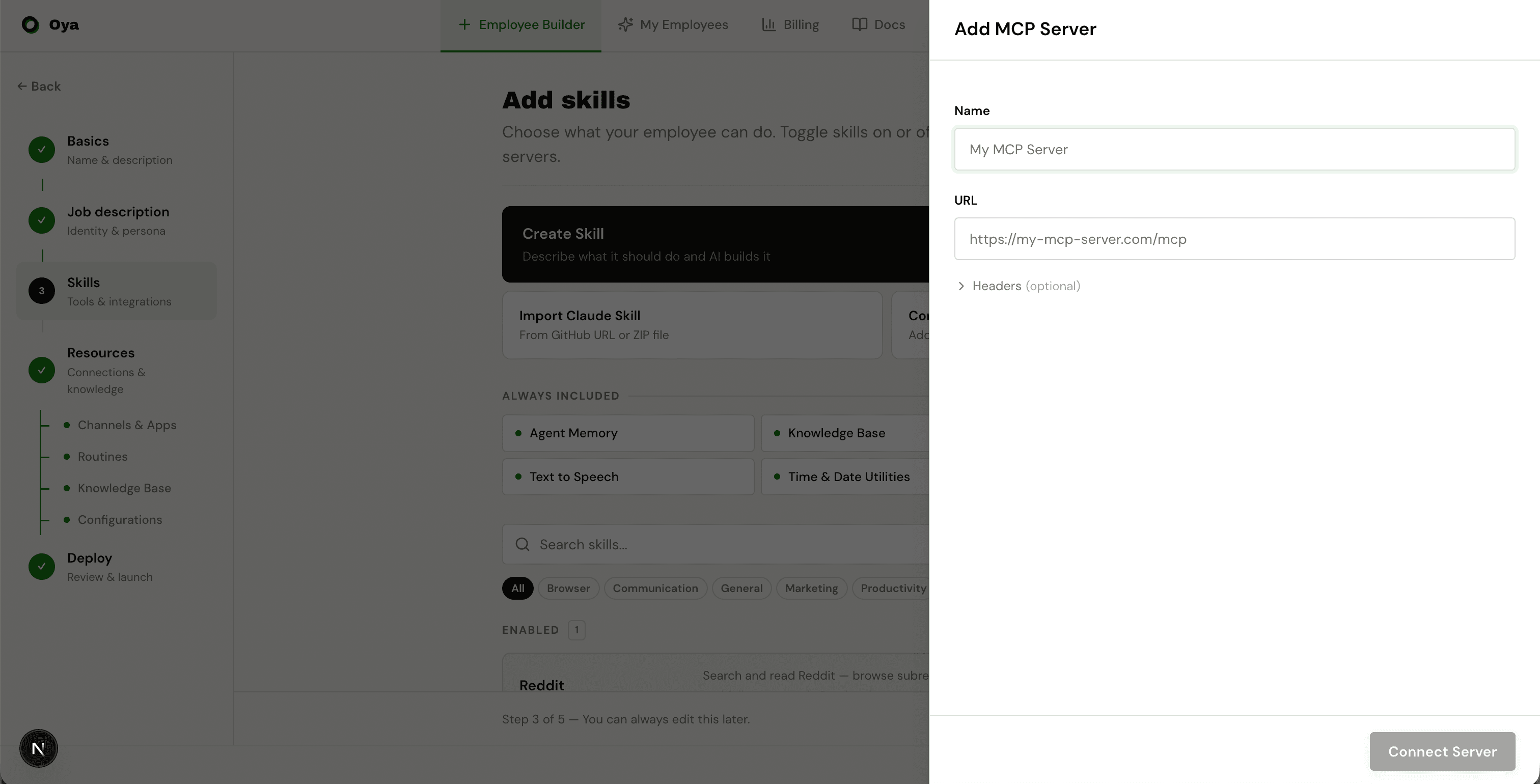
Click Connect and Oya will attempt to reach the server and discover available tools.
Tool Discovery
When you connect an MCP server, Oya queries it for available tools. Each tool's name, description, and parameter schema are pulled automatically. If the server doesn't respond with tools immediately, Oya falls back to lazy discovery: tools are fetched on first use.
Authentication
If your MCP server requires authentication, add custom headers in the connection dialog. Common patterns include Bearer tokens and API keys.
{"Authorization": "Bearer your-token-here"}Using MCP Tools in Chat
Once connected, MCP tools appear alongside regular skills when chatting with the agent. The agent decides when to use MCP tools based on the user's message and the tool descriptions: no special syntax needed.
MCP tool calls appear in the Run Tree just like regular skill executions, showing the tool name, input, output, and duration.