Channels & Apps
Connect channels (Slack, Telegram, WhatsApp, Facebook Messenger, Instagram DM, LinkedIn Messaging, X DMs) and apps (Gmail, Google Calendar, Google Drive, ClickUp, Jira, Attio, LinkedIn, X, Apollo, Hunter.io, Instantly, and more) to your AI employees.
Overview
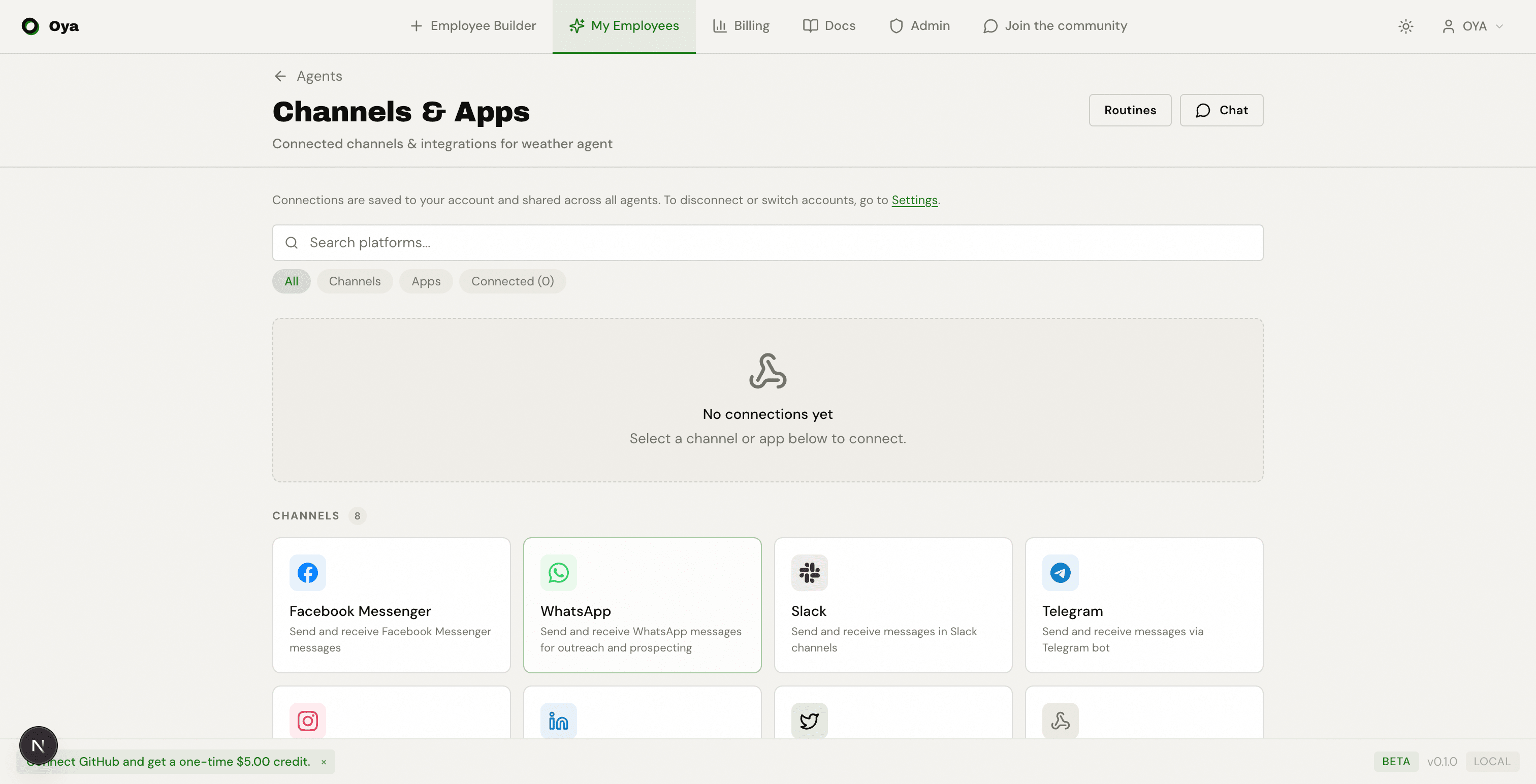
Channels and apps are platform connections that enable bidirectional messaging between your AI employee and external services. When you connect a channel or app, Oya creates a unique webhook URL that bridges the platform to your agent — messages flow in from the platform and responses flow back out automatically.
Account-Level Connections
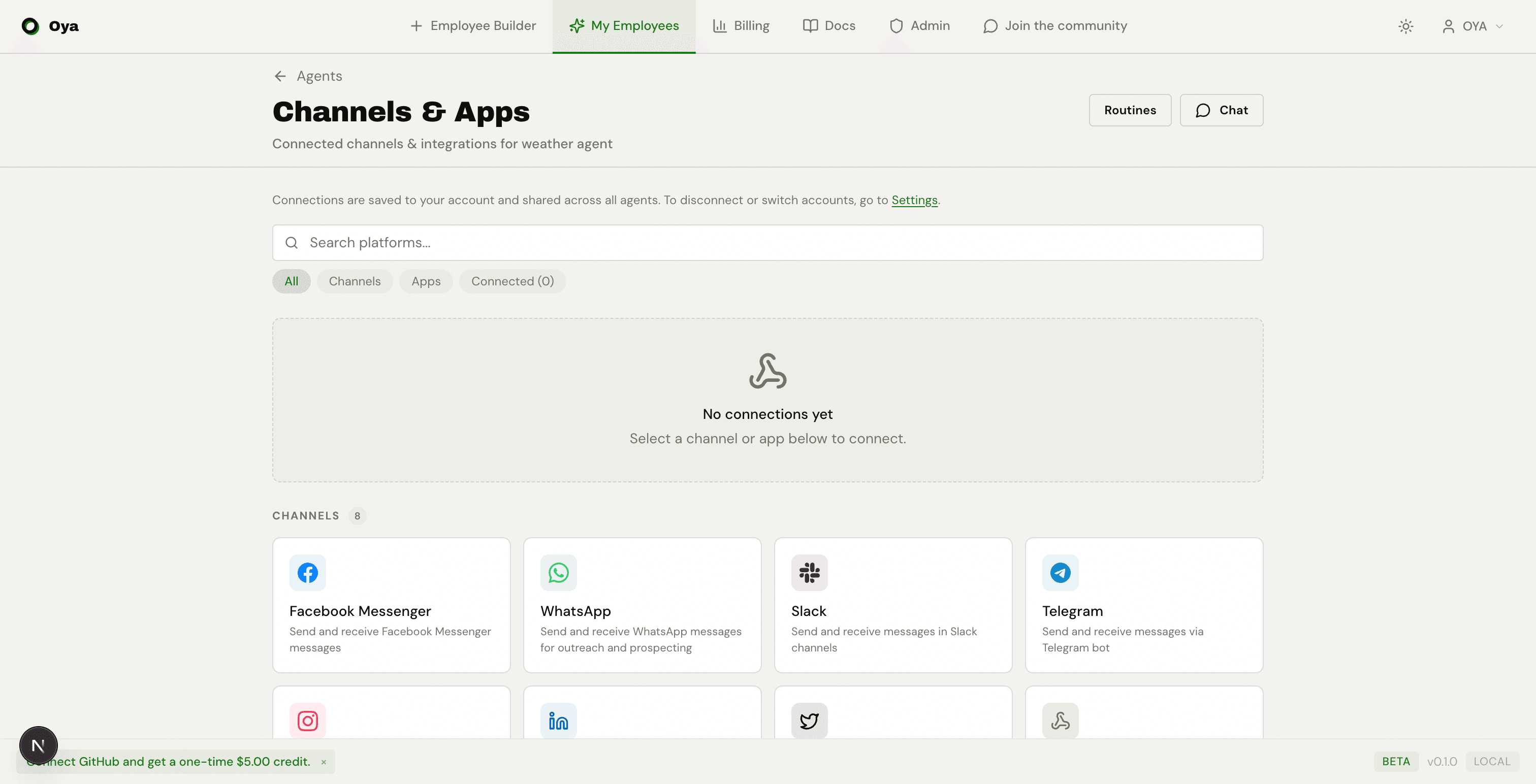
All platform connections (Slack, Telegram, Gmail, Google Calendar, Google Drive, LinkedIn, and others) are account-level. You connect once and reuse the connection across all your agents.
- When you connect a platform from any agent, the connection is saved to your account.
- Other agents automatically reuse the existing connection — no re-auth needed.
- To disconnect or change an account, go to Settings > Connected Accounts.
Slack
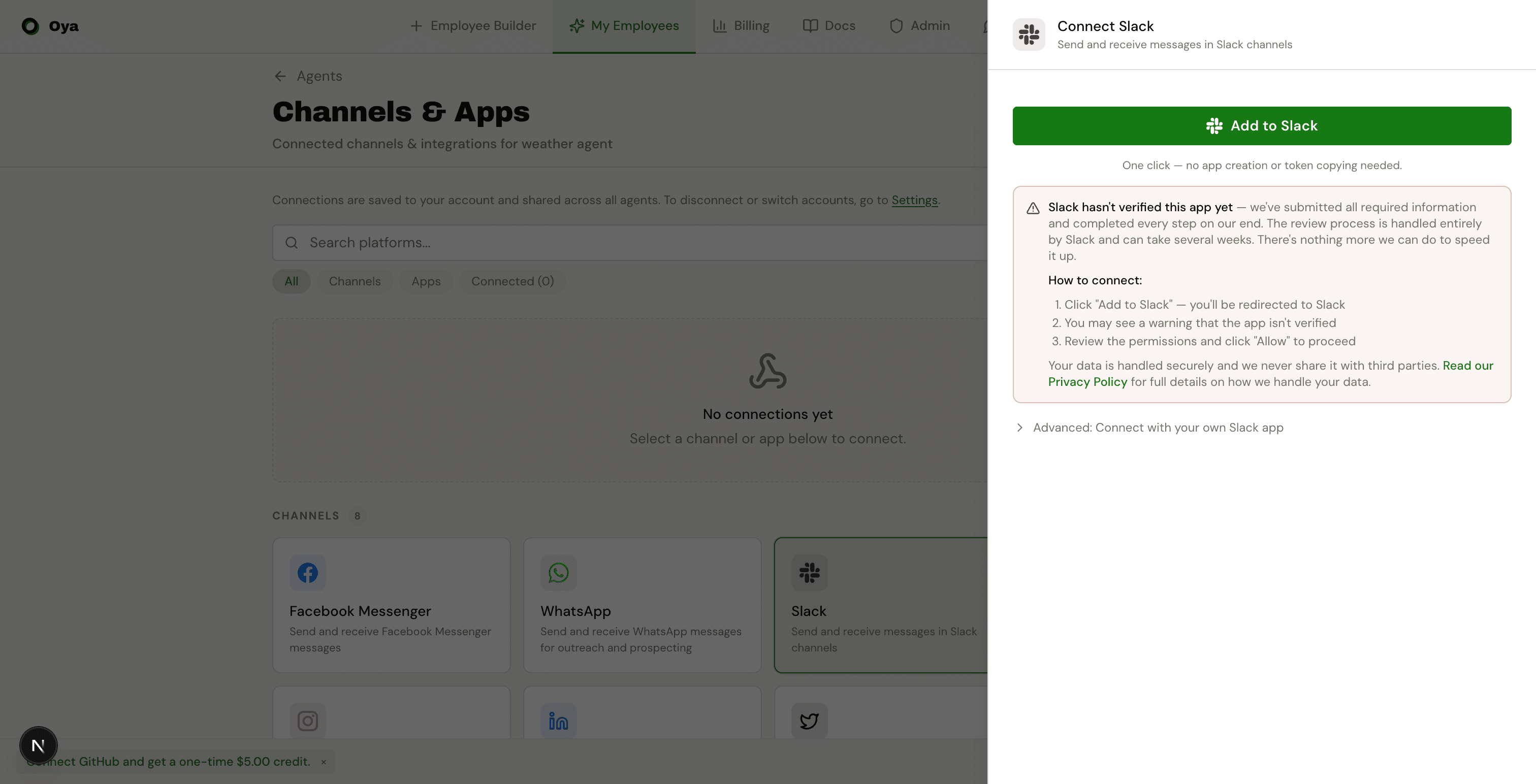
The Slack gateway supports two connection modes. One-click OAuth handles everything automatically — no Slack app creation needed. For teams that need custom scopes, event subscriptions, or slash commands, the Advanced option lets you provide your own Bot Token, Signing Secret, and Default Channel.
Setting Up a Custom Slack Bot
If you need full control over your Slack app (custom scopes, slash commands, interactive components), follow these steps to create your own bot:
- 1. Go to api.slack.com/apps and click Create New App > From scratch.
- 2. Name your app and select the workspace.
- 3. Go to OAuth & Permissions and add these Bot Token Scopes:
# Required scopes
chat:write          — Send messages
channels:history    — Read messages in public channels
groups:history      — Read messages in private channels
im:history          — Read direct messages
app_mentions:events — Respond when @mentioned

# Optional scopes
reactions:read      — Read emoji reactions
reactions:write     — Add emoji reactions
files:write — Upload files- 4. Install the app to your workspace and copy the Bot User OAuth Token (starts with xoxb-).
- 5. Go to Basic Information and copy the Signing Secret.
- 6. Go to Event Subscriptions, enable events, and paste your Oya webhook URL as the Request URL.
- 7. Subscribe to these bot events: message.channels, message.groups, message.im, app_mention.
- 8. In Oya, expand Advanced under the Slack gateway, paste the Bot Token and Signing Secret, then click Connect.
Channel Assignment (1 Agent per Channel)
Each Slack gateway can be assigned to a specific channel. This ensures only one agent handles messages in that channel — no ambiguity when multiple agents share the same workspace. Open the gateway settings and use the channel picker to select a channel the bot is a member of.
- Only channels the bot has been invited to are shown.
- Channels already assigned to another agent show a "taken by" label.
- Private channels appear with a lock icon. Invite the bot with /invite @Oya.
- Unassigned gateways fall back to disambiguation when multiple agents receive the same message.
Progress Messages
Enable the Show Progress toggle in gateway config to get real-time step-by-step progress updates in the channel. When enabled, the agent posts an editable message that updates live as it works:
- Each step shows an emoji indicator — ⏳ in-progress, ✅ done, ❌ failed.
- Steps include skill execution, sandbox operations, LLM calls, and tool runs.
- The progress message is kept after completion as a log of what happened.
- Replaces the generic "Still working..." timer message.
Telegram
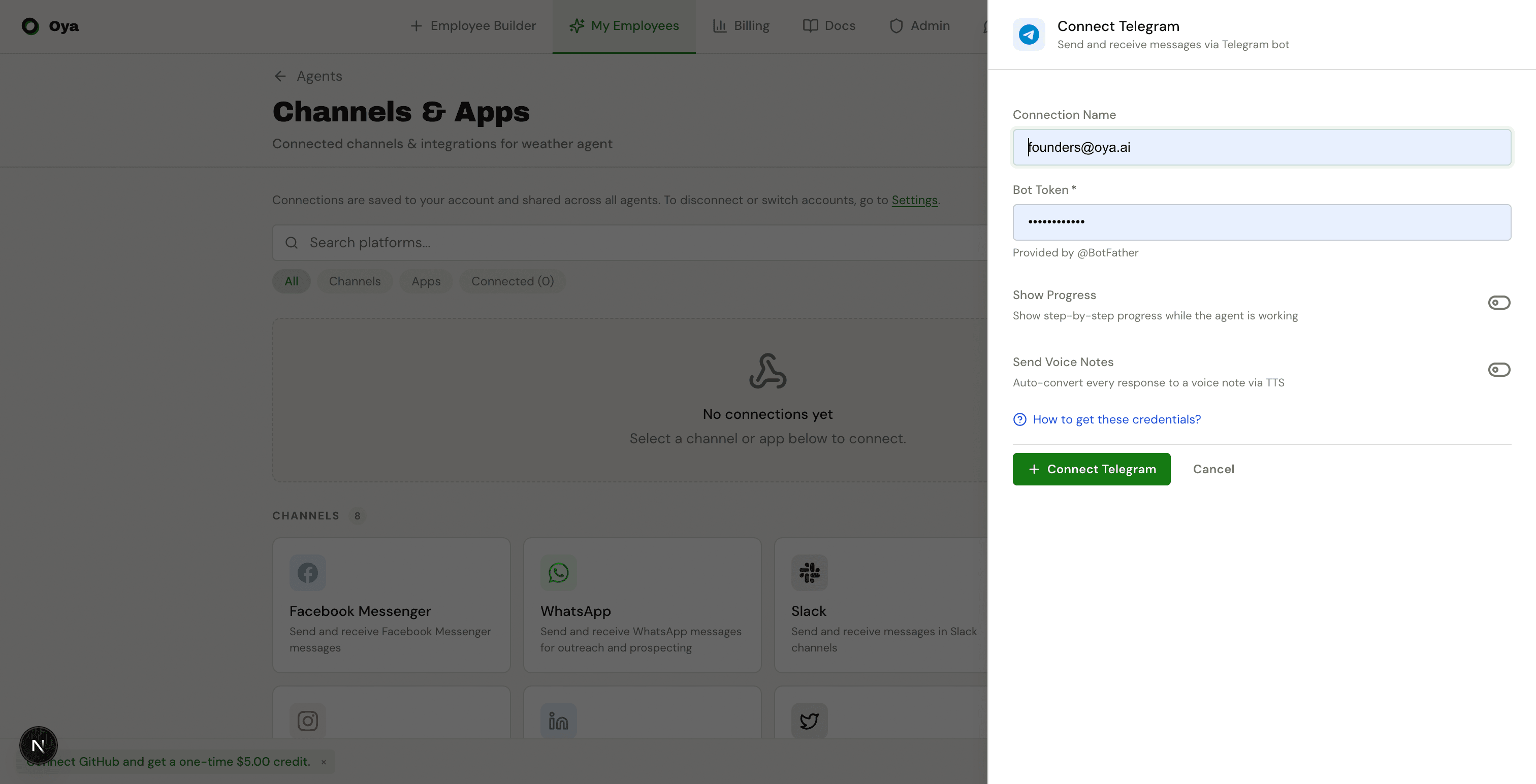
Provide the Bot Token from @BotFather to connect Telegram. Chat IDs are automatically discovered as users message the bot — no manual configuration needed.
Voice-to-Text (Speech Recognition)
When a user sends a voice message to the Telegram bot, Oya automatically transcribes it using OpenAI Whisper and processes the text as a regular message. The transcribed text is prefixed with [Voice message] so the agent knows it came from speech.
OPENAI_API_KEY environment variable to be set on the backend.Voice Notes (Text-to-Speech)
Enable Send Voice Notes to have the agent automatically convert text responses to voice messages via OpenAI TTS. You can choose from multiple voices (alloy, ash, coral, echo, fable, nova, onyx, sage, shimmer). The language is auto-detected from the response text.
Gmail
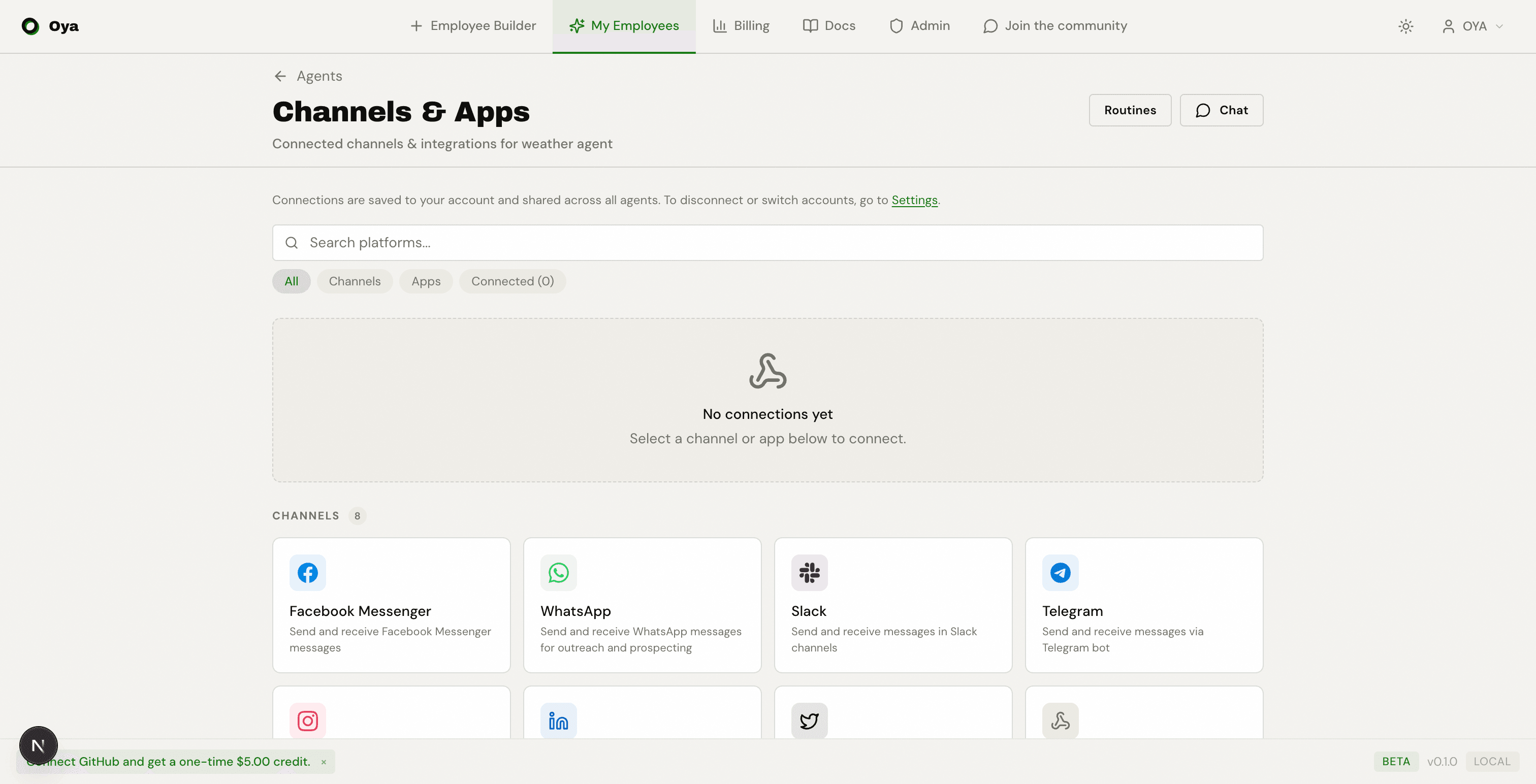
Gmail supports one-click OAuth for personal accounts or manual setup with a Service Account JSON and User Email for Google Workspace environments.
Google Calendar
Google Calendar can be connected via one-click OAuth or manually with a Service Account JSON and Calendar ID.
Google Drive
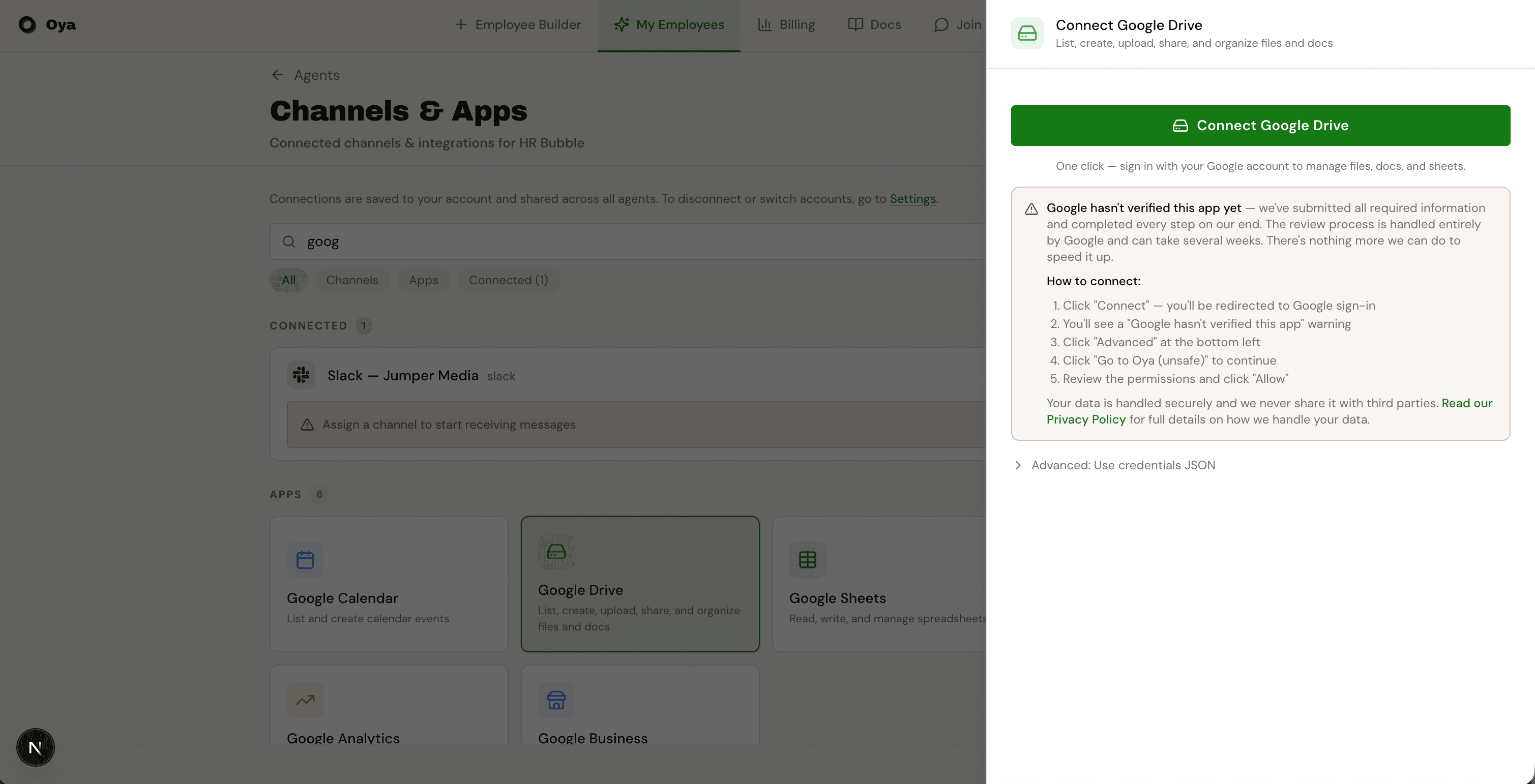
Connect Google Drive with one-click OAuth using the same Google app as Gmail and Calendar. Once connected, your agent can list, search, create, upload, download, and manage files and folders in Drive.
ClickUp
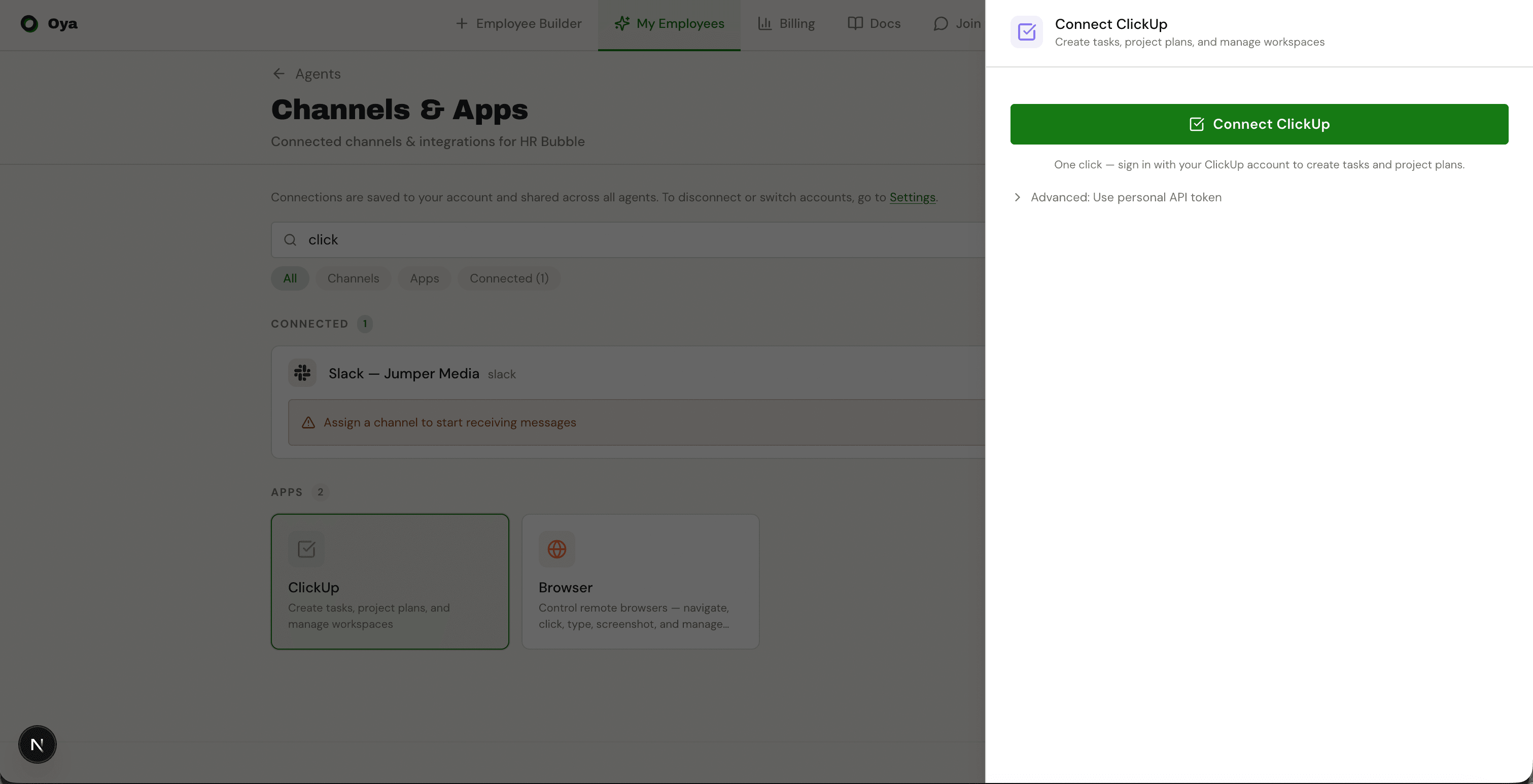
Connect ClickUp with one-click OAuth. Oya automatically detects your team ID after authorization. Once connected, the agent can create and manage tasks, lists, folders, and comments across your ClickUp workspace.
Jira
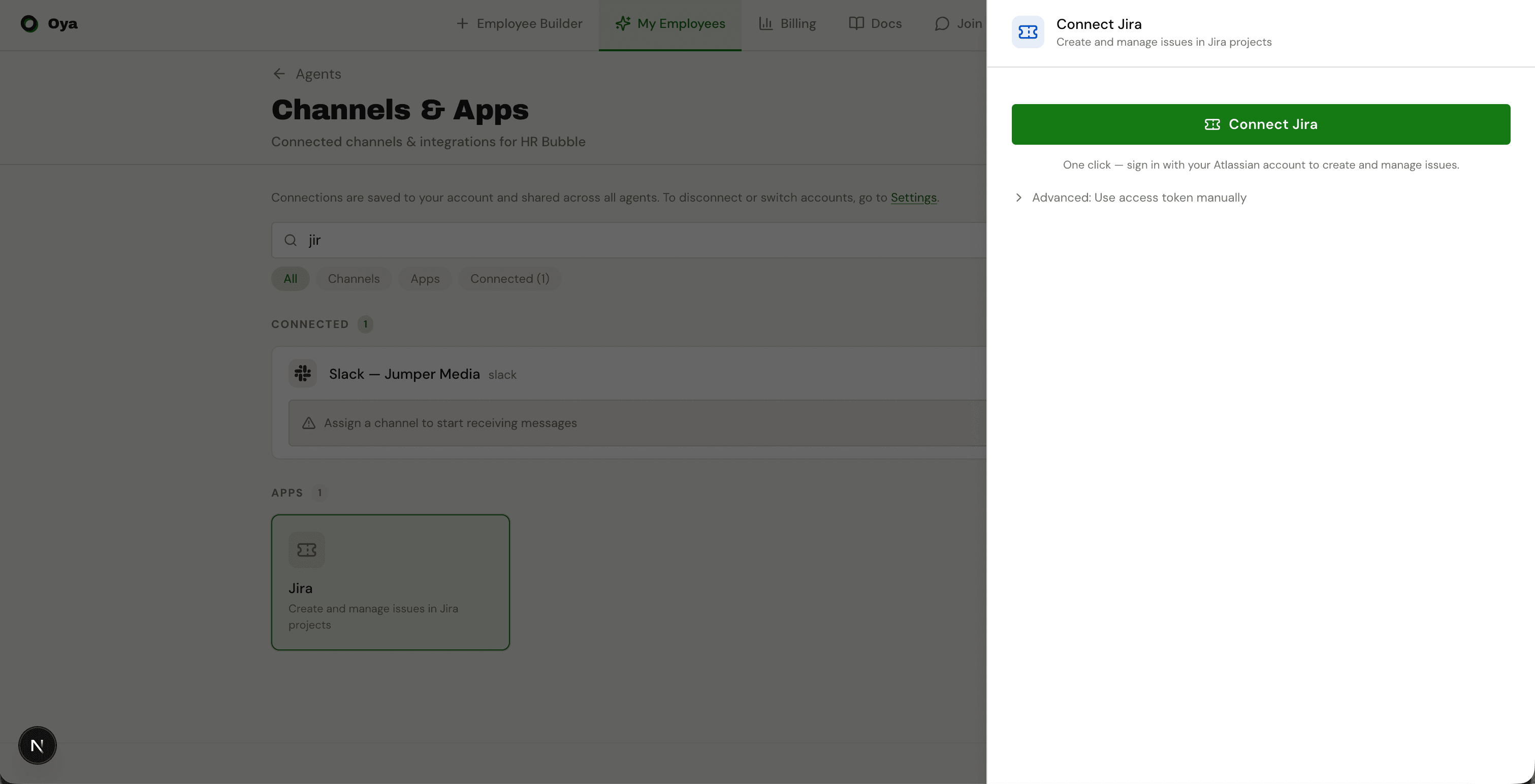
Connect Jira via Atlassian 3-Legged OAuth (3LO). After authorization, Oya auto-detects your Atlassian cloud ID. The connection uses rotating refresh tokens for long-lived access without re-authentication.
Attio
Connect Attio — the data-driven CRM — to give your AI employee read and write access to your workspace. Two connection paths are supported and both land on the same gateway:
- One-click OAuth (default): install the Oya app from Attio's app store or click "Connect Attio" in the gateway sidebar. Attio handles authorization in a single browser hop and the connection is reused across every agent on your account.
- Personal access token: paste a token from app.attio.com/settings/api into the gateway connect dialog. Useful when you don't want to install the OAuth app, or for headless setups.
What the agent can do
The Attio skill exposes 24 actions covering the full data model:
- Records: list, search, get, create, update across people, companies, and any custom objects.
- Lists: list lists, list entries, add a record to a list.
- Tasks: list, create, complete. Assignees resolve from workspace member emails or IDs.
- Notes: list (workspace-wide or filtered to one record), get a single note with full content, and create a markdown note attached to a record.
- Comments & threads: list threads on a record or list entry, fetch a thread with its comments, post a comment to an existing thread or start a new one inline.
- Meetings (beta): list meetings filtered by linked record, linked object, or participant emails.
- Call recordings (beta): list recordings for a meeting, fetch one with its transcript inline.
- Files (beta): list files across the workspace with optional record/object/storage-provider filters, fetch one with its download URL.
- Workspace members: list members — useful for resolving the author of a comment or the assignee of a task.
Requested scopes
Attio scopes are configured on the OAuth app at build.attio.com rather than requested per-authorize call. The Oya app asks for the following granular scopes — review them on Attio's consent screen during install:
- record_permission:read-write — read and write records (people, companies, custom objects).
- object_configuration:read — discover what objects and attributes exist in your workspace.
- list_entry:read-write — read and write entries on lists.
- list_configuration:read — discover what lists exist.
- task:read-write — read, create, and complete tasks.
- note:read-write — read and create notes on records.
- comment:read-write — read threads, read comments, post new comments.
- meeting:read — read meetings (beta).
- call_recording:read — read call recordings and transcripts (beta).
- file:read — read file metadata and download URLs (beta).
- user_management:read — list workspace members.
Real-time triggers
Oya doesn't register Attio webhooks for you automatically yet, but you can wire Attio events into an agent today using the generic Webhook gateway (see below). Create a webhook gateway in Oya, copy the URL, and paste it into Attio Settings > Developers > Webhooks. Pick the event types you care about (record updates, list entry additions, comments, call recordings, etc.) and Attio will POST events to your agent in real time.
Connect LinkedIn via one-click OAuth. After authorization, Oya stores the access token and auto-refreshes it before expiry (tokens last 60 days, refreshed at 50 days). Once connected, the agent can manage your LinkedIn presence — create posts, share URLs, react to content, comment on posts, and manage company pages.
Connect WhatsApp via one-click auth (Unipile hosted auth). Scan a QR code from your WhatsApp app to link your account. Once connected, your AI employee can send and receive WhatsApp messages for outbound prospecting.
Auto-respond is configurable per gateway — the AI can auto-respond to incoming messages or notify you on Slack instead.
Instagram DM
Connect Instagram DM via one-click auth. Sign in with your Instagram credentials to link your account. Once connected, your AI employee can send and receive Instagram direct messages.
Auto-respond is configurable per gateway.
LinkedIn Messaging
LinkedIn Messaging requires LinkedIn to be connected first (in Apps). Click Enable LinkedIn Messaging to add messaging capabilities to your agent. If LinkedIn is not connected yet, clicking the button connects LinkedIn first, then enables messaging automatically.
Once enabled, your AI employee can send connection requests, InMail, and direct messages on LinkedIn.
Facebook Messenger
Connect Facebook Messenger via one-click Meta OAuth. Authorize the OyaAI app on Facebook, and Oya automatically detects your Page and generates a long-lived Page Access Token. Once connected, your AI employee can send and receive Facebook Messenger messages from your Page.
For advanced use cases, expand the Advanced section to provide your own Page ID and Page Access Token manually.
X DMs
Connect X DMs via one-click auth to enable bidirectional direct message conversations on X (Twitter). This is separate from the X (Twitter) posting gateway — the X gateway handles public tweets and engagement, while X DMs handles private conversations.
Once connected, your AI employee can send and receive X direct messages for outbound prospecting and customer conversations.
X (Twitter)
Connect X (Twitter) via one-click OAuth 2.0 with PKCE. Access tokens expire every 2 hours and are automatically refreshed using rotating refresh tokens. Once connected, the agent can create tweets, reply, retweet, like, search recent tweets, and look up users.
Apollo
Connect Apollo with your API key from Apollo Settings > Integrations > API Keys. Once connected, the agent can search people and organizations matching your ICP, and enrich contact profiles with emails, phone numbers, and company data.
Hunter.io
Connect Hunter.io with your API key from Hunter.io Dashboard > API & Integrations. The agent can find emails at a domain, find a specific person's email, verify email deliverability, and count emails by department and seniority.
- domain_search — Find all emails at a company domain.
- email_finder — Find a specific person's email by name + domain.
- email_verifier — Check deliverability (status, score, MX records, SMTP).
- email_count — Count emails at a domain (free, no credits used).
Instantly
Connect Instantly with your API key from Instantly Settings > Integrations > API. Enable the campaigns and leads scopes when creating the key. The agent can manage campaigns, add leads, launch outreach, and monitor analytics.
- list_campaigns / get_campaign — Browse and inspect campaigns.
- add_lead / add_leads_bulk — Add leads with personalization and custom variables.
- launch_campaign / pause_campaign — Control campaign sending.
- campaign_analytics — Track opens, replies, bounces, and unsubscribes.
- list_accounts — View connected sending accounts and warmup status.
Webhook
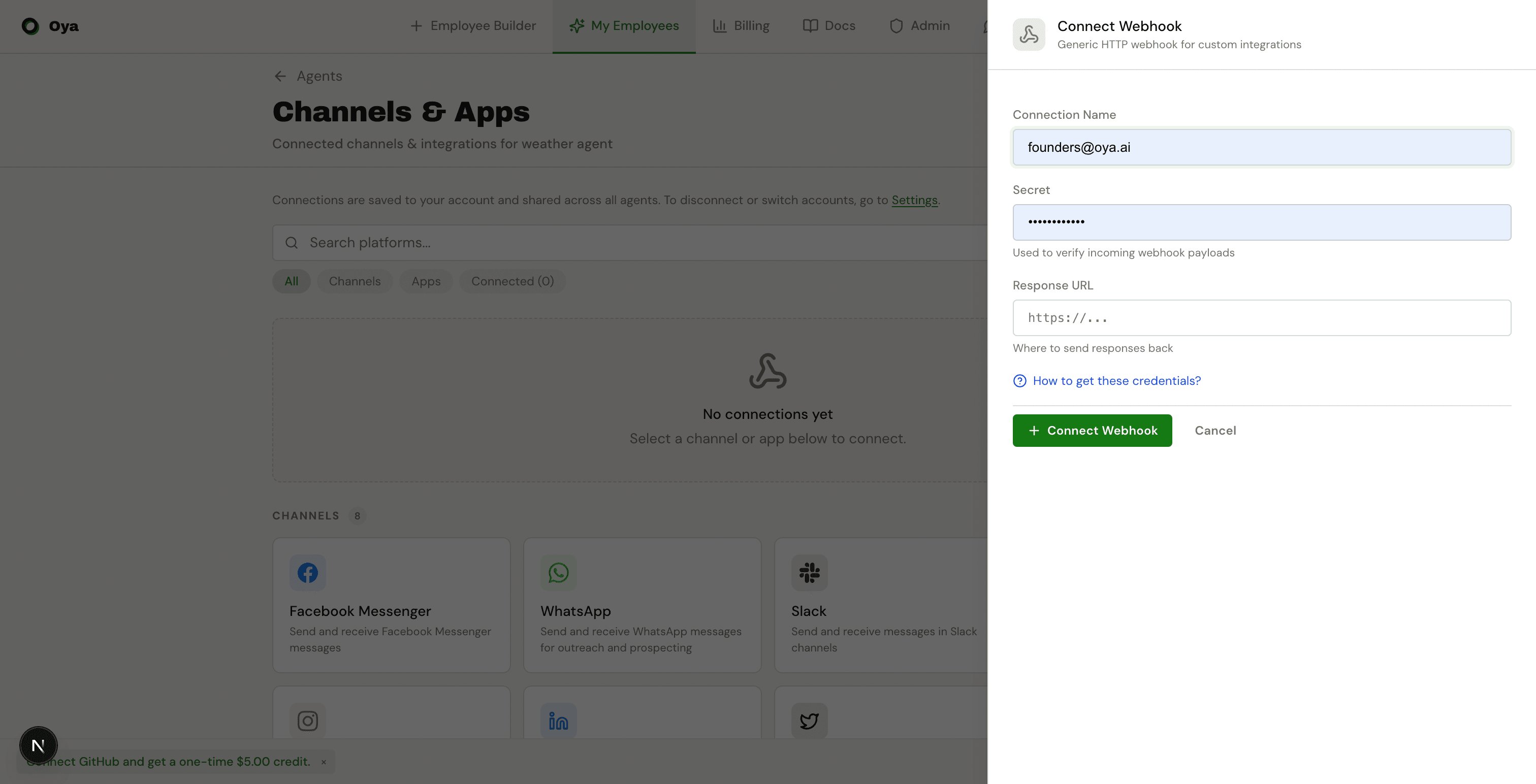
The generic HTTP webhook gateway accepts a Connection Name, an optional HMAC Secret for payload verification, and a Response URL where the agent sends replies.
Send a POST request with a JSON body containing a text field:
curl -X POST "https://oya.ai/api/gateways/{gateway_id}/webhook" \
  -H "Content-Type: application/json" \
  -d '{"text": "What is the weather in NYC?"}'
The agent processes the message and sends the response to your configured Response URL:
{
  "message": "The current weather in NYC is 72°F and sunny.",
  "channel": ""
}Managing Connections
All connections are account-level. You connect a platform once — either from Settings or from any agent — and every agent on your account can use that connection. To disconnect or switch to a different account, go to Settings > Connected Accounts.
You can add multiple gateways to a single agent — for example, Slack and Telegram simultaneously. Each connection gets a connection name and a unique webhook URL. To add a gateway, click the platform card on the Gateways page and fill in the required fields.
Each gateway produces a unique webhook URL. Use it to configure event delivery on the external platform:
# Slack — paste in Event Subscriptions > Request URL
https://oya.ai/api/gateways/{gateway_id}/slack/events

# Telegram — auto-registered via setWebhook API
https://oya.ai/api/gateways/{gateway_id}/telegram/webhook
Activate / Deactivate
Each gateway has an activation toggle. Deactivating a gateway stops it from processing incoming messages without deleting the connection. The gateway shows an "Inactive" badge when deactivated. Re-activate it at any time to resume.
Viewing Credentials
Connected gateways show masked credentials. Click the eye icon to reveal stored tokens and secrets. For OAuth-connected gateways, the panel shows the connected account details (workspace name, email, or site).
Activity Logs
Each gateway has an expandable activity log section showing recent messages processed through that connection. Logs display the timestamp, status (done, failed, queued), user, message preview, and any errors. Click a log entry to view the full thread in Chat.
Debugging
Every gateway message is processed as a background job and stored in a thread. To debug what happened during a gateway interaction:
- Open the agent's Chat page — gateway threads appear in the sidebar named by platform and channel.
- Each assistant response has a Run Tree trace showing LLM calls, tool executions, token counts, cost, and duration.
- Trace data is internal only — platform users on Slack, Telegram, and other channels only see the text response, never the trace.