Employee Builder
The Employee Builder walks you through creating an AI employee in five steps: Basics, Job Description, Skills, Resources, and Deploy. Each step builds on the previous one to produce a fully configured, production-ready assistant.
Getting Started
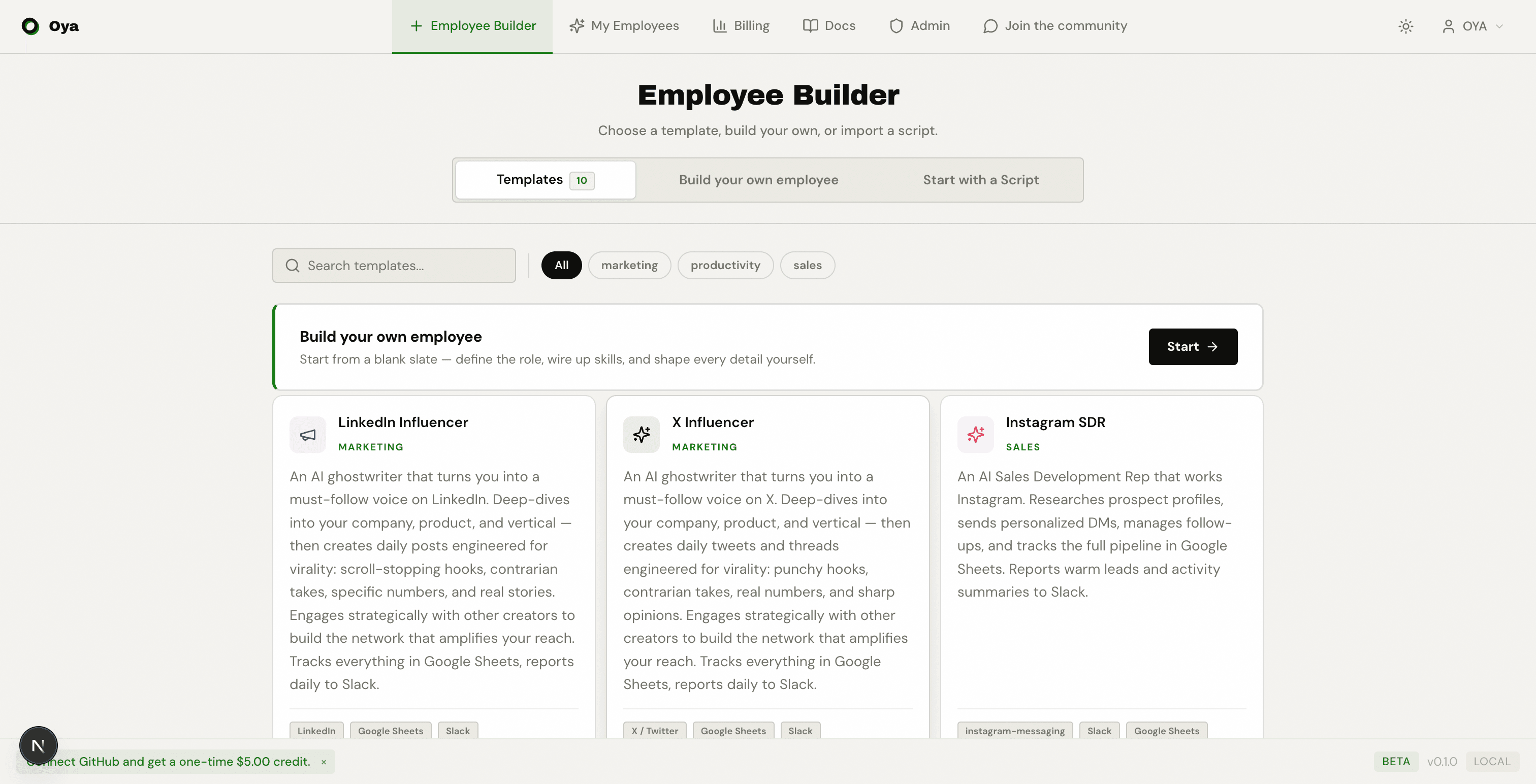
Navigate to Employee Builder from the sidebar or the main dashboard. You will see three tabs for bringing an AI employee to life:
- Templates: start from a pre-built template (LinkedIn Influencer, SDR, SEO Manager, and more) and customize it.
- Build your own employee: start from scratch using the guided five-step builder.
- Start with a Script: upload an existing Python agent script and deploy it instantly.
Import Script
The Import Script option lets you upload an existing Python agent script and wrap it in the Oya runtime. Instead of building from scratch, you provide the code and Oya handles hosting, sandboxing, platform connections, and API exposure.
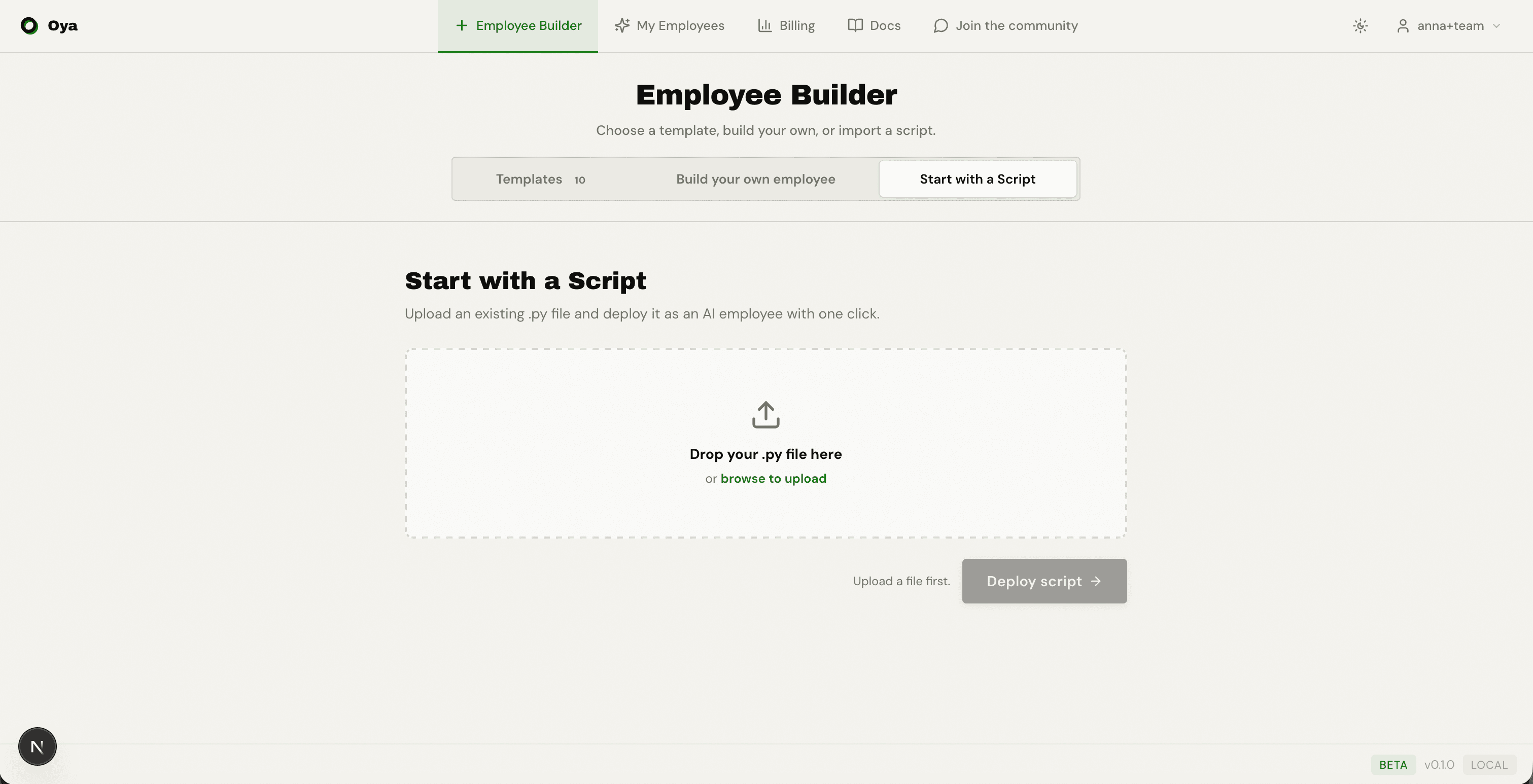
Imported scripts create an Automation agent type. Automations differ from standard assistants in a few key ways:
- Runs: automation agents show a Runs page instead of chat-based threads.
- Tools: available skills appear as tools the script can invoke.
- Triggers: webhooks and scheduled triggers replace the Routines/Gateways model.
Step 1: Basics
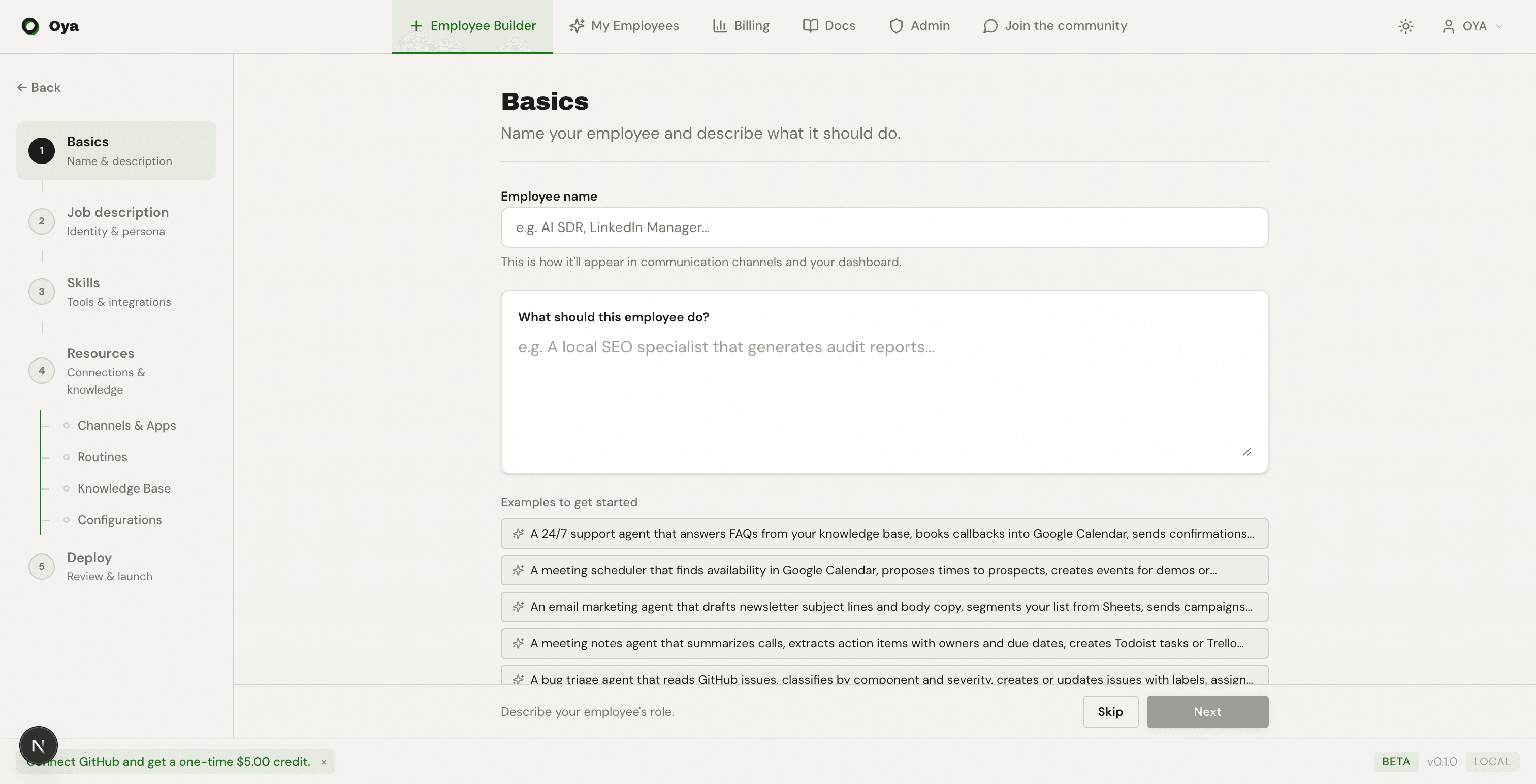
The first step asks you to name your employee and describe what it should do. Type a natural-language description of the task you want your AI employee to perform. The platform uses your description to auto-suggest a mission, persona, skills, and behavior rules in the following steps.
Below the input you will see example descriptions you can click to pre-fill the field. These cover common use cases like project management, lead qualification, content generation, and data analysis.
Step 2: Job Description
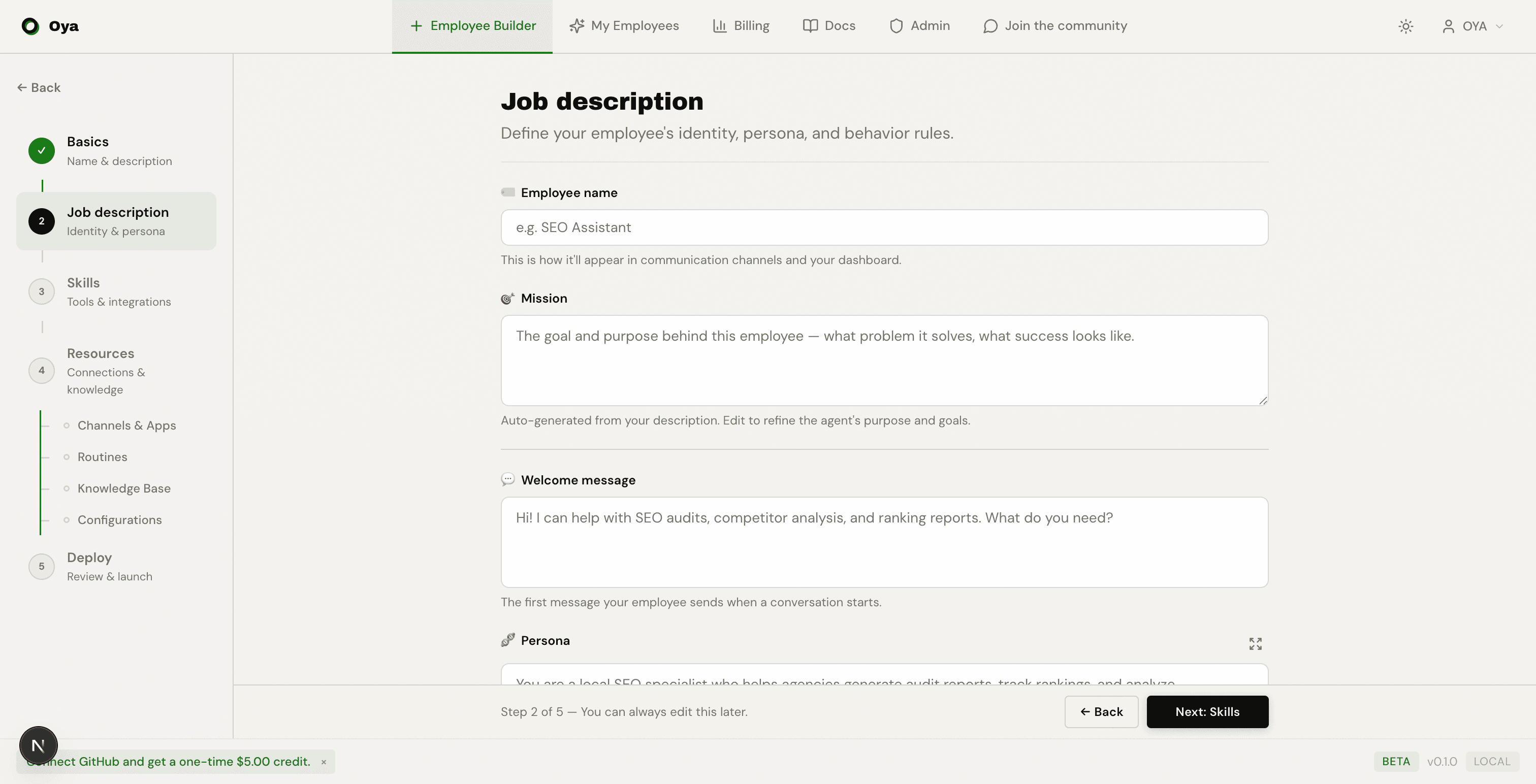
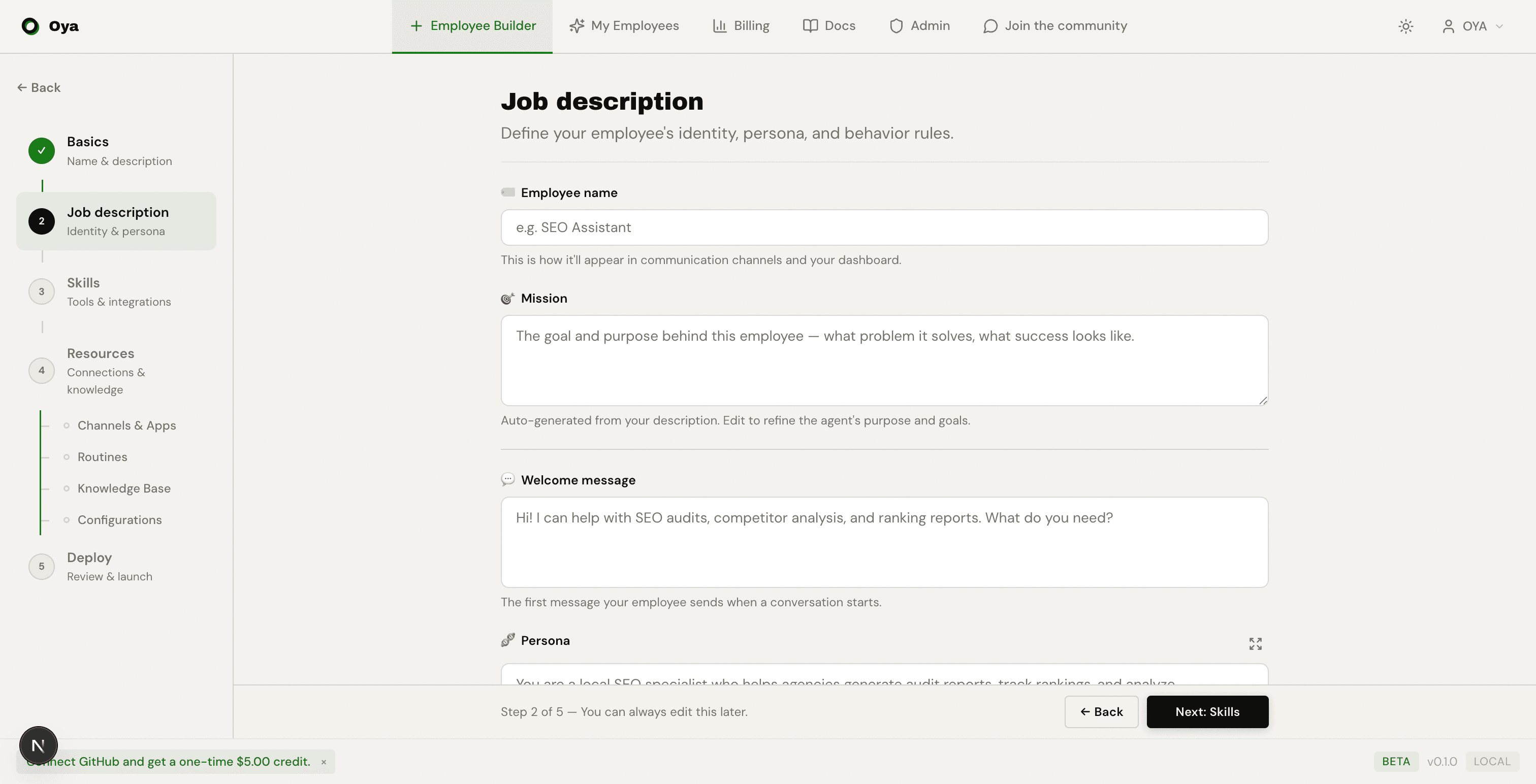
The Job Description step is where you define your employee's identity. Everything here shapes how the AI thinks, responds, and behaves. There are four main sections: Employee Name, Mission, Welcome Message, and Persona. Behavior rules can be added by scrolling down.
Employee Name & Mission
The Employee Name is the display name users will see in chat and on connected platforms. The Mission defines the goal and purpose behind this employee: what problem it solves and what success looks like. This is auto-generated from your description but can be edited.
You are Alex, a project manager assistant connected to Jira and Slack.

Role: Help the team triage incoming requests, create Jira stories, and post daily standups to Slack.
Tone: Clear, concise, action-oriented. Use bullet points for updates.
Scope: Project management across tickets, sprint planning, status reports, and team coordination.
Constraints:
- Never close or delete tickets without explicit confirmation.
- Always include acceptance criteria when creating stories.
- Escalate blockers to the team lead via Slack DM.Welcome Message
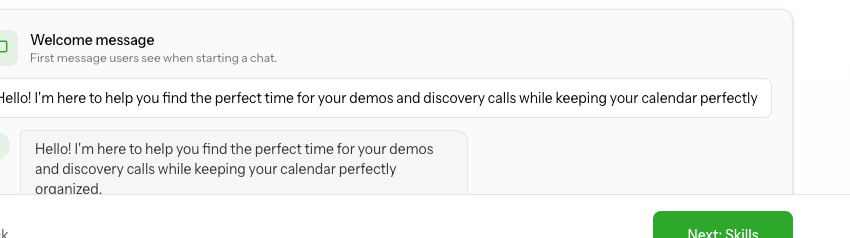
The Welcome Message is the first thing users see when they open a new conversation with your assistant. Use it to set expectations, introduce capabilities, and prompt the user to get started.
Behavior Rules
Behavior rules are explicit constraints that override everything else. They are injected into the system prompt and enforced on every interaction. Use them for guardrails like "Never share pricing information" or "Always respond in Spanish." The builder suggests common rules you can add with one click.
# Example behavior rules

Always respond in the same language the user writes in.
When creating Jira tickets, include a summary, description, and acceptance criteria.
Use Agent Memory to track ongoing projects and user preferences across conversations.
Keep responses concise, under 3 paragraphs unless the user asks for detail.
Before taking any destructive action (deleting, closing, reassigning), confirm with the user first.
Always include links to relevant Jira tickets or Slack threads when referencing them.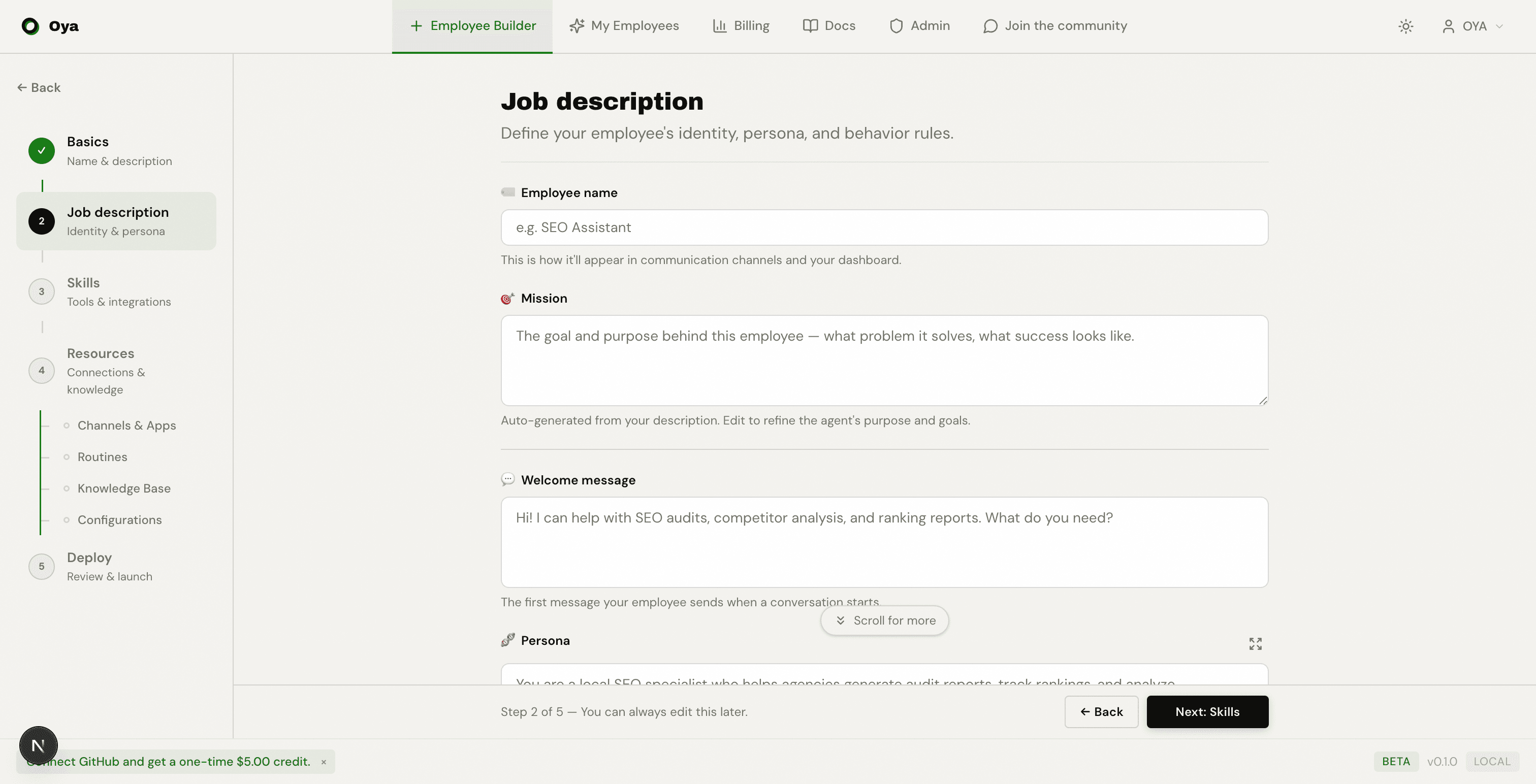
Step 3: Skills
Skills are the capabilities your AI employee can use at runtime. The Skills step presents a catalog of available skills organized into three categories:
- Core Skills: built-in capabilities like Agent Memory, Web Search, and HTTP API Call. These are available to every assistant.
- Add-on Skills: pre-built integrations for specific services (e.g., Jira, GitHub, Google Sheets). Install them from the catalog.
- Custom Skills: AI-generated Python scripts tailored to your exact requirements. You describe what the skill should do, and the AI writes the code.
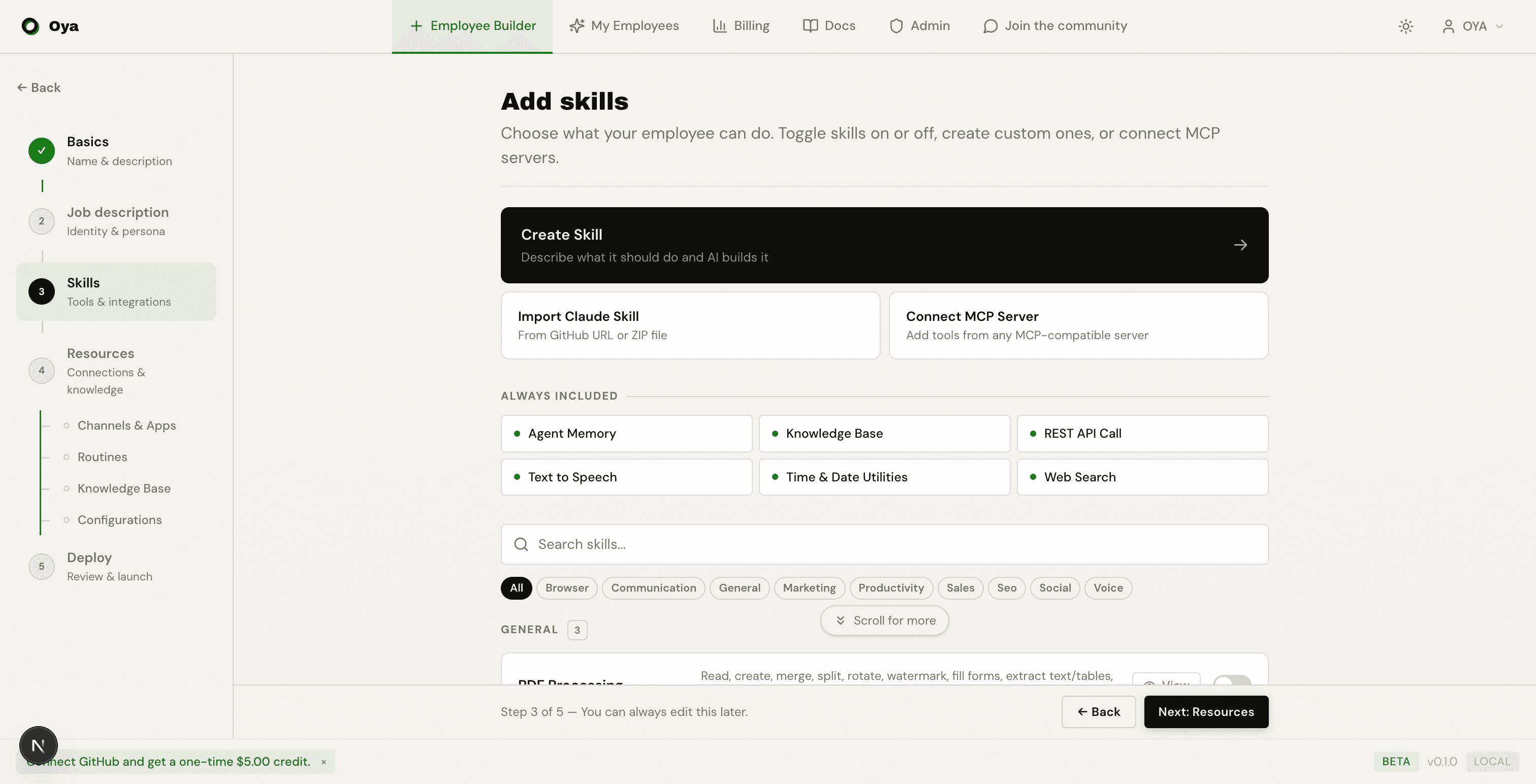
Oya also supports MCP Servers (Model Context Protocol). If your organization runs MCP-compatible tool servers, you can connect them as skill providers, giving your assistant access to any tools they expose without writing custom code.
Creating Custom Skills
Click Create a Custom Skill to open the AI skill generator. Describe what the skill should do, optionally provide an API reference or example, and the AI will generate a Python script. The generated script is editable before you install it.
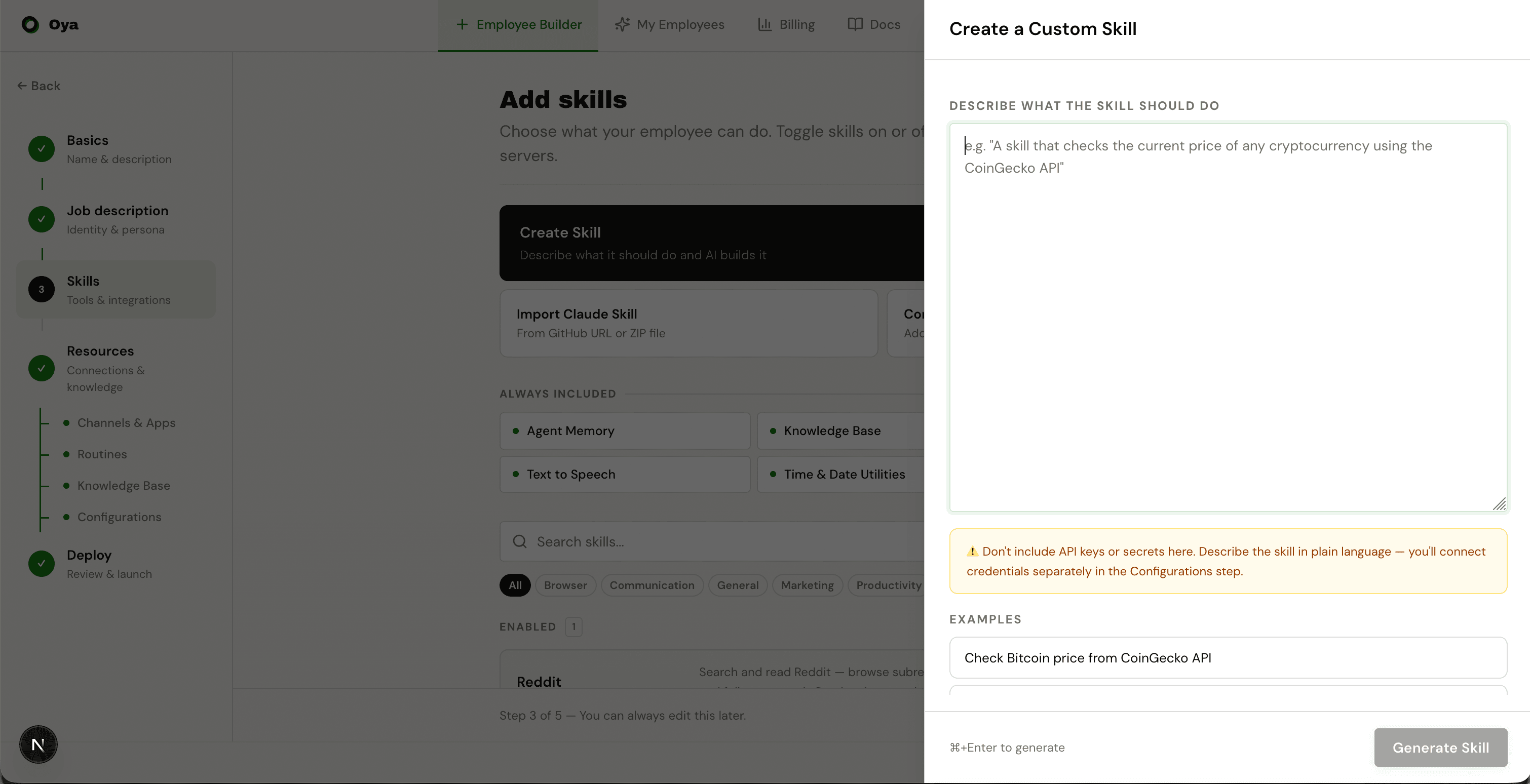
The generated skill follows the standard SKILL.md format with a Python script. Arguments are passed via the INPUT_JSON environment variable, and results are printed to stdout.
import os, json, httpx

inp = json.loads(os.environ.get("INPUT_JSON", "{}"))
repo = inp["repo"]  # e.g. "acme/backend"
days = inp.get("days", 7)

# Fetch recent merged PRs from GitHub
headers = {"Authorization": f"token {os.environ['GITHUB_TOKEN']}"}
r = httpx.get(
    f"https://api.github.com/repos/{repo}/pulls",
    params={"state": "closed", "sort": "updated", "per_page": 20},
    headers=headers,
)
prs = [p for p in r.json() if p.get("merged_at")]

print(json.dumps({
    "repo": repo,
    "merged_prs": len(prs),
    "recent": [{"title": p["title"], "author": p["user"]["login"]} for p in prs[:5]],
}))Step 4: Resources
The Resources step is where you provide everything your assistant needs to operate in the real world: API credentials, platform connections, and scheduled routines. It has three tabs.
Credentials
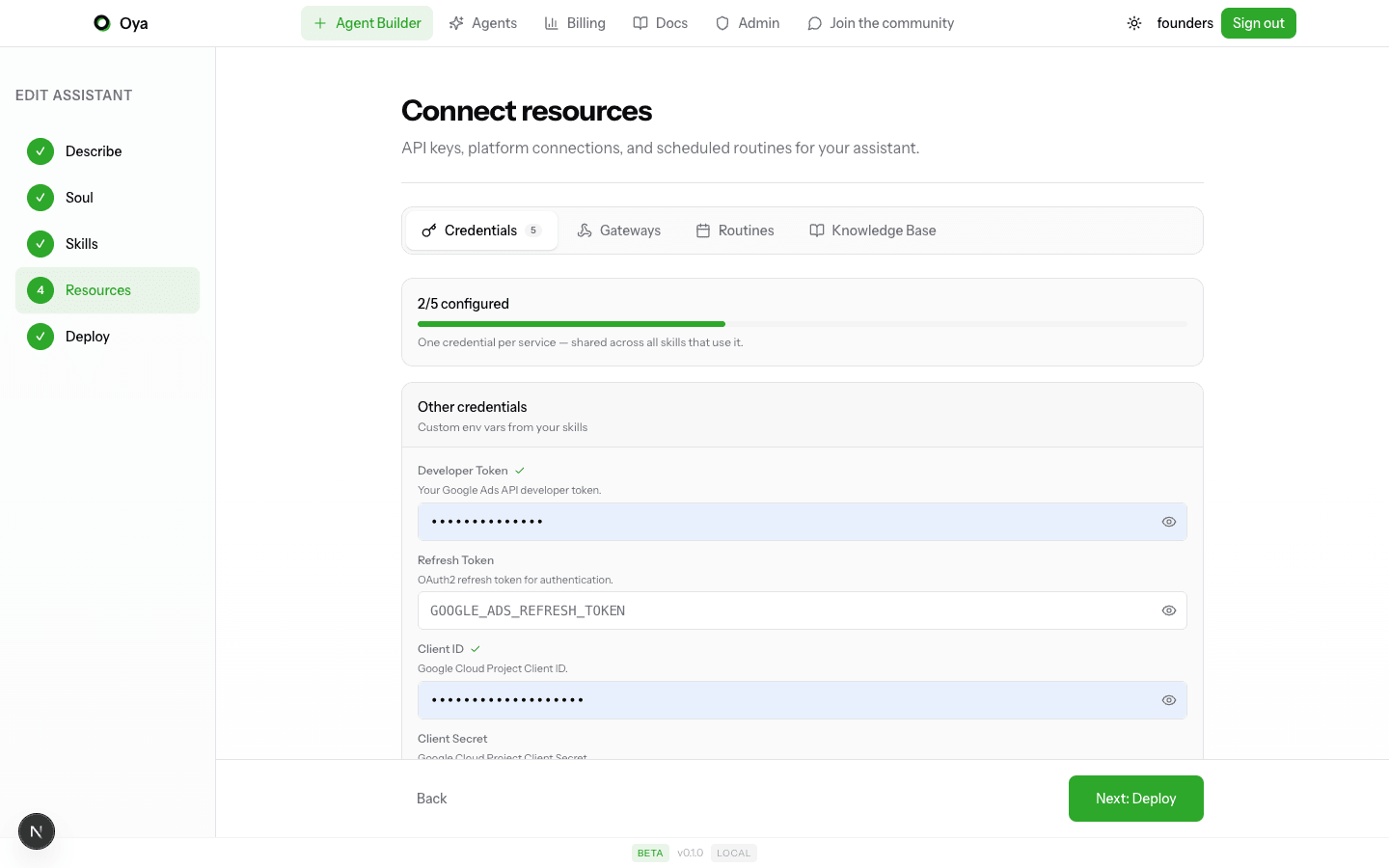
The Credentials tab is auto-populated based on the skills you enabled. If a skill requires an API key or secret, it will appear here as a required field. Fill in the values and they will be securely injected into the sandbox at runtime as environment variables.
Platforms
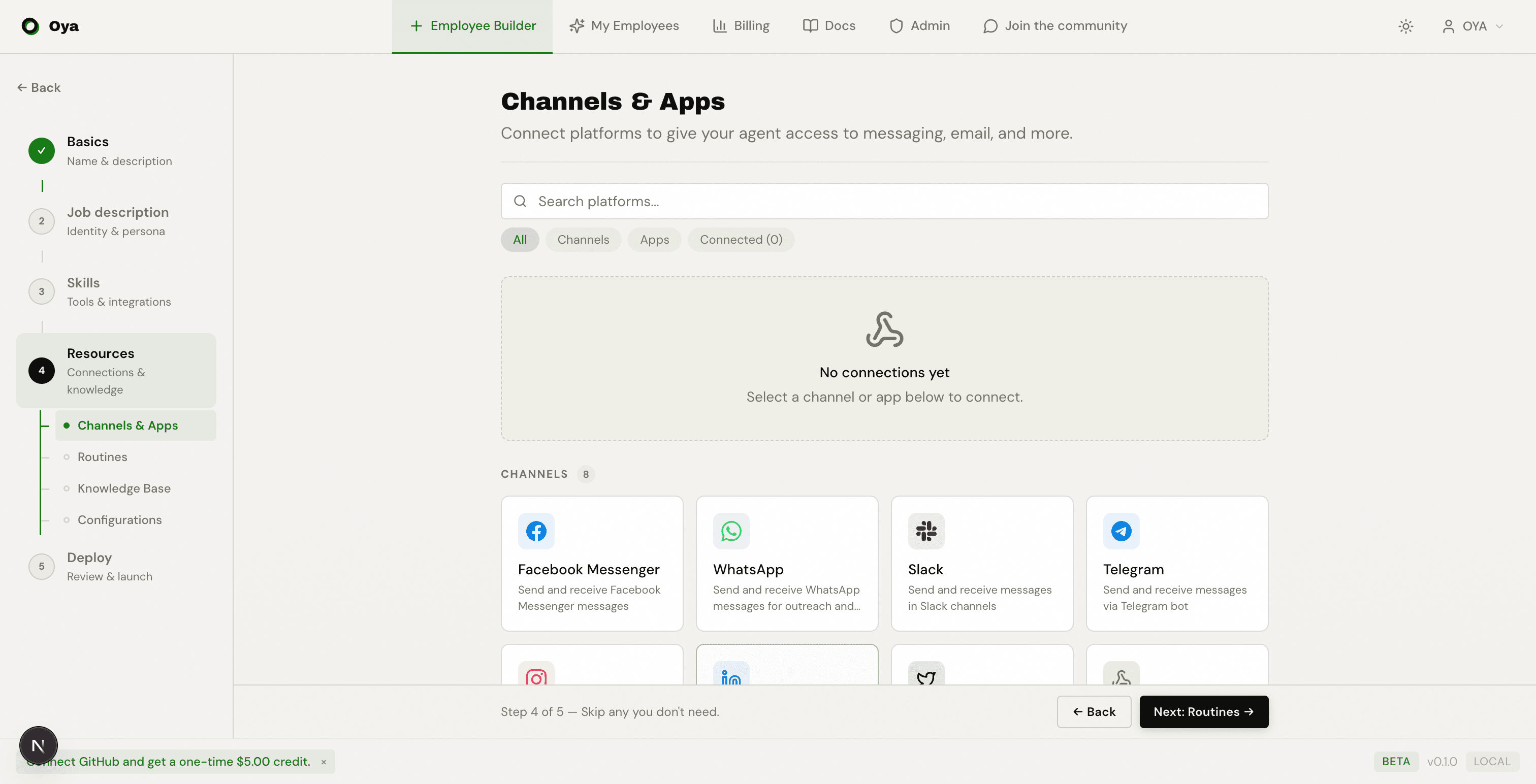
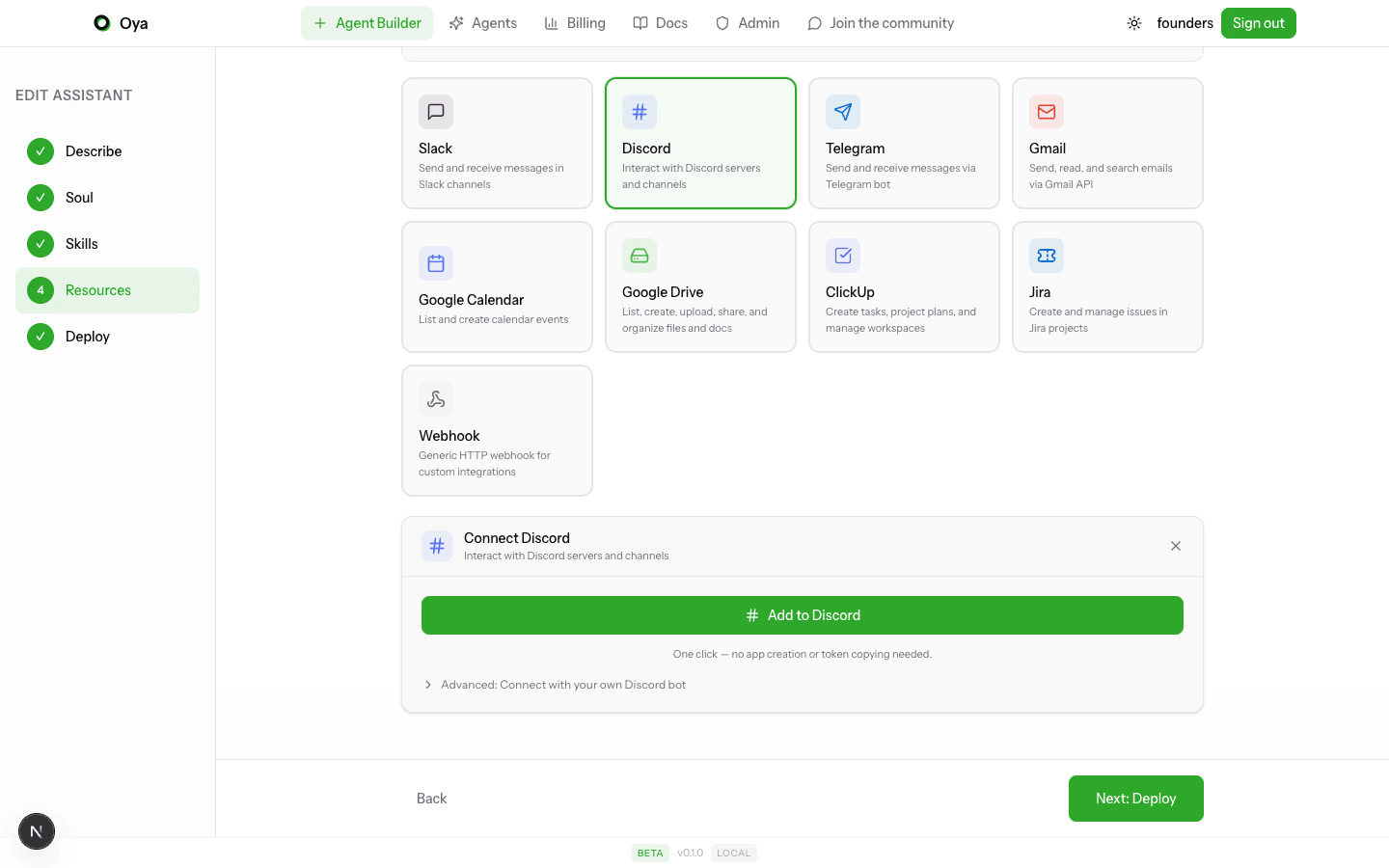
The Platforms tab lets you connect your assistant to external messaging platforms. Each platform provides a bidirectional channel: users can message the assistant, and the assistant can send messages back. Supported platforms include Slack, Telegram, Gmail, Google Calendar, Google Drive, Google Sheets, ClickUp, Jira, LinkedIn, X (Twitter), WhatsApp, Instagram DM, LinkedIn Messaging, Facebook Messenger, X DMs, and generic Webhooks, plus B2B tools like Apollo, Hunter.io, and Instantly.
Slack
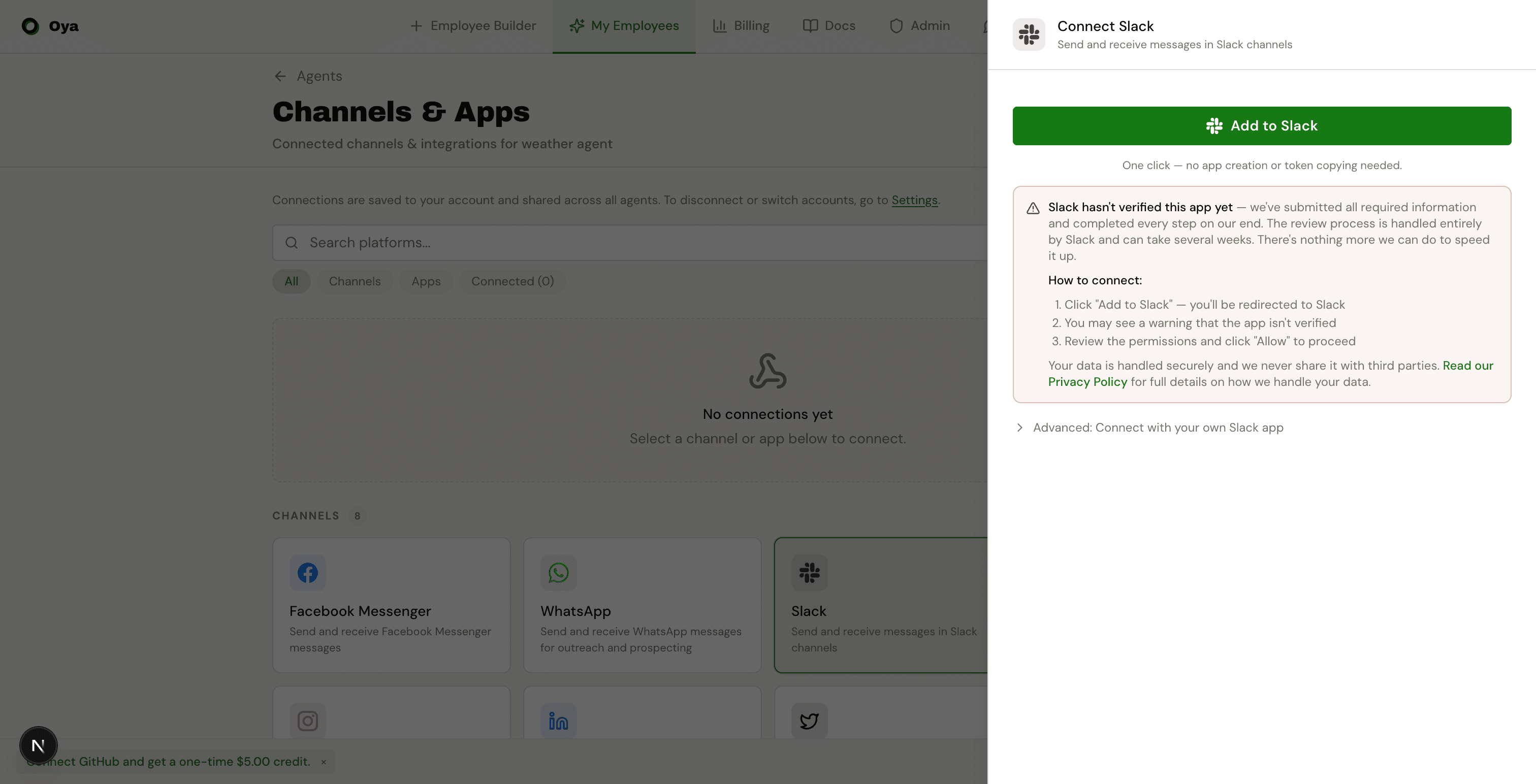
Click Add to Slack for one-click OAuth setup. This creates a new Slack app in your workspace with the necessary scopes. For advanced use cases, expand the Advanced section to provide your own Bot Token, Signing Secret, and App ID.
Discord
Provide your Discord Bot Token to connect. Your bot must be added to the target server with appropriate permissions.
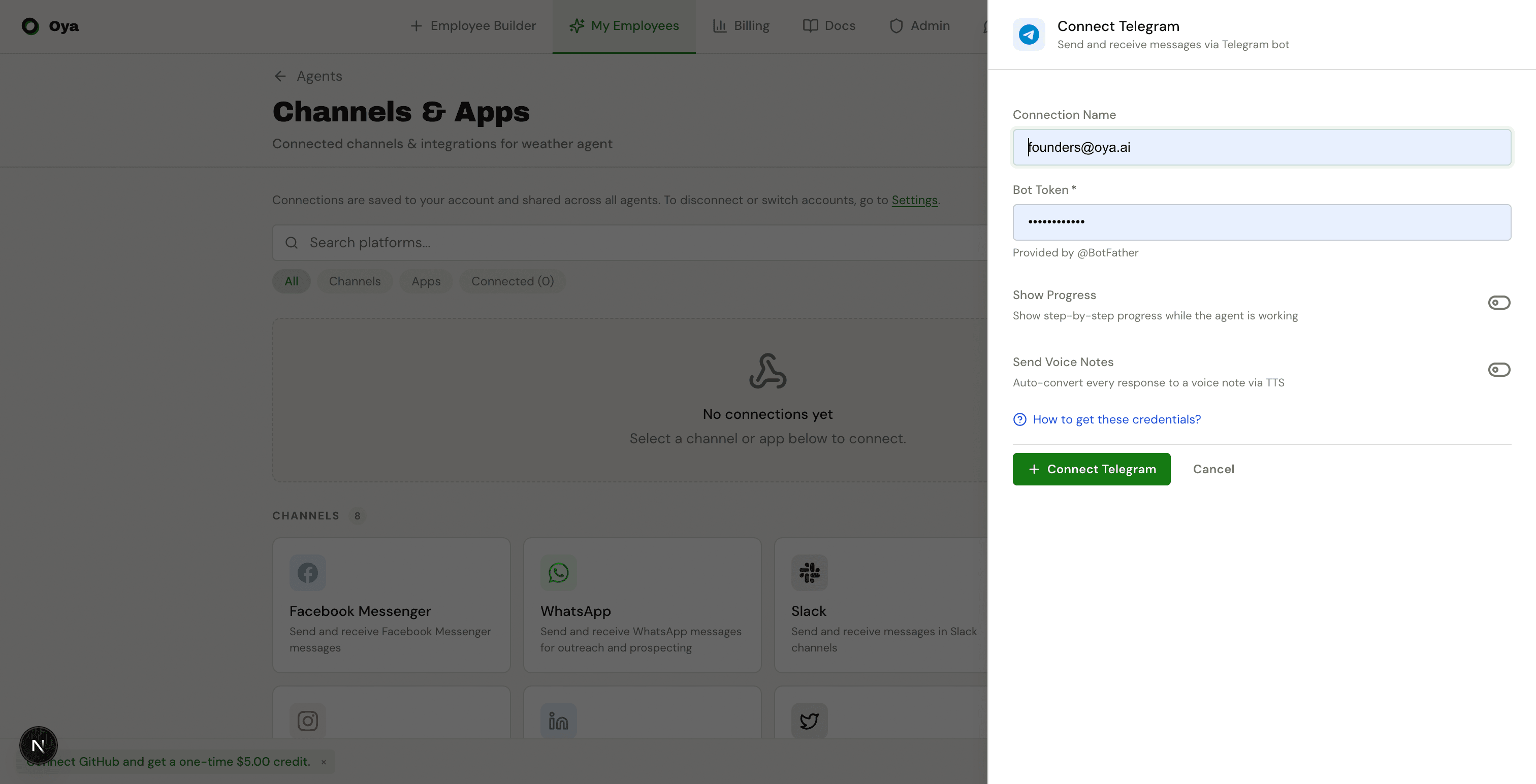
Telegram
Provide the Bot Token from BotFather. Once connected, your Telegram bot will respond to direct messages and can be added to group chats.
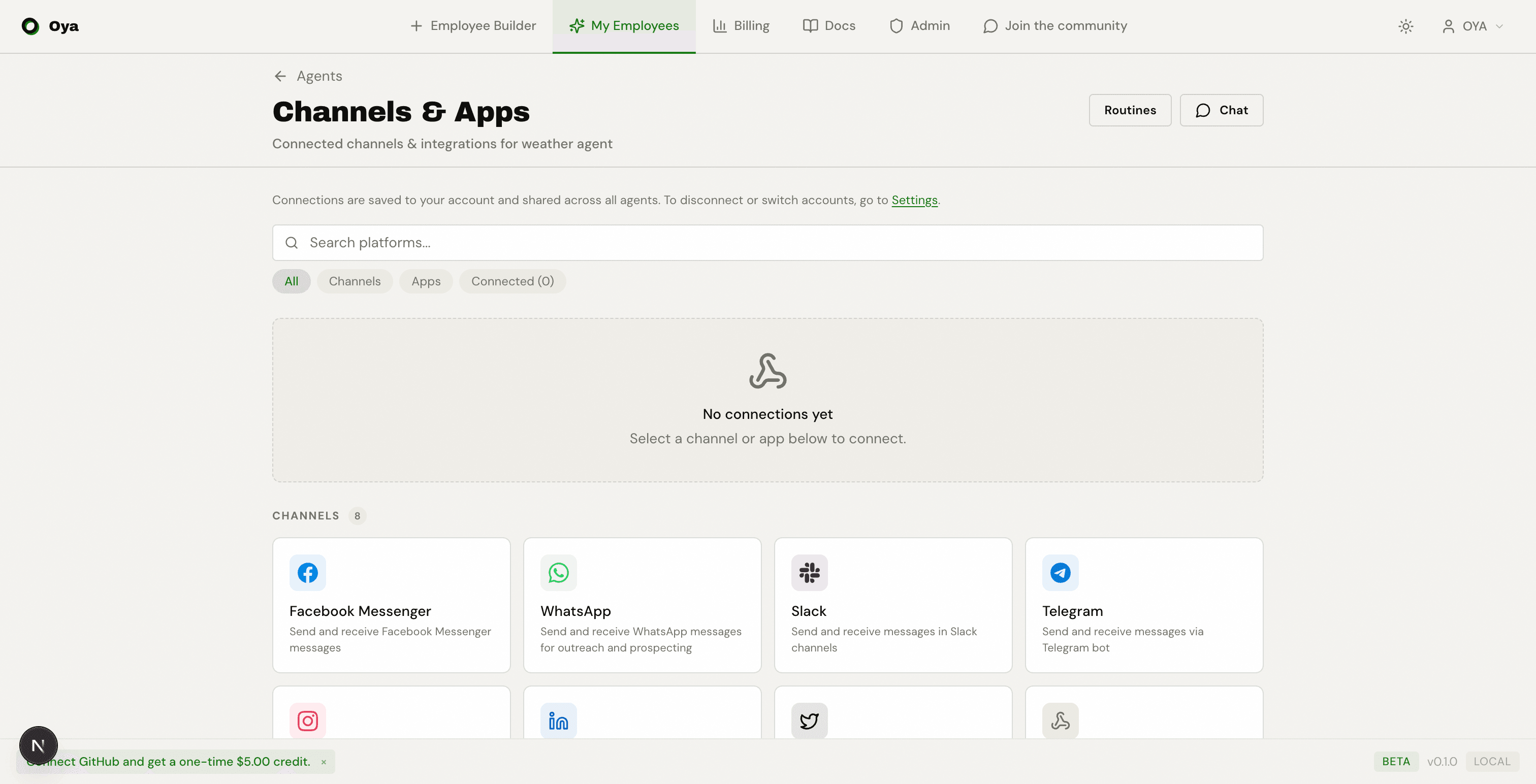
Gmail
Connect Gmail to let your assistant send and receive emails. You can use OAuth for personal accounts or service account credentials for organization-wide access.
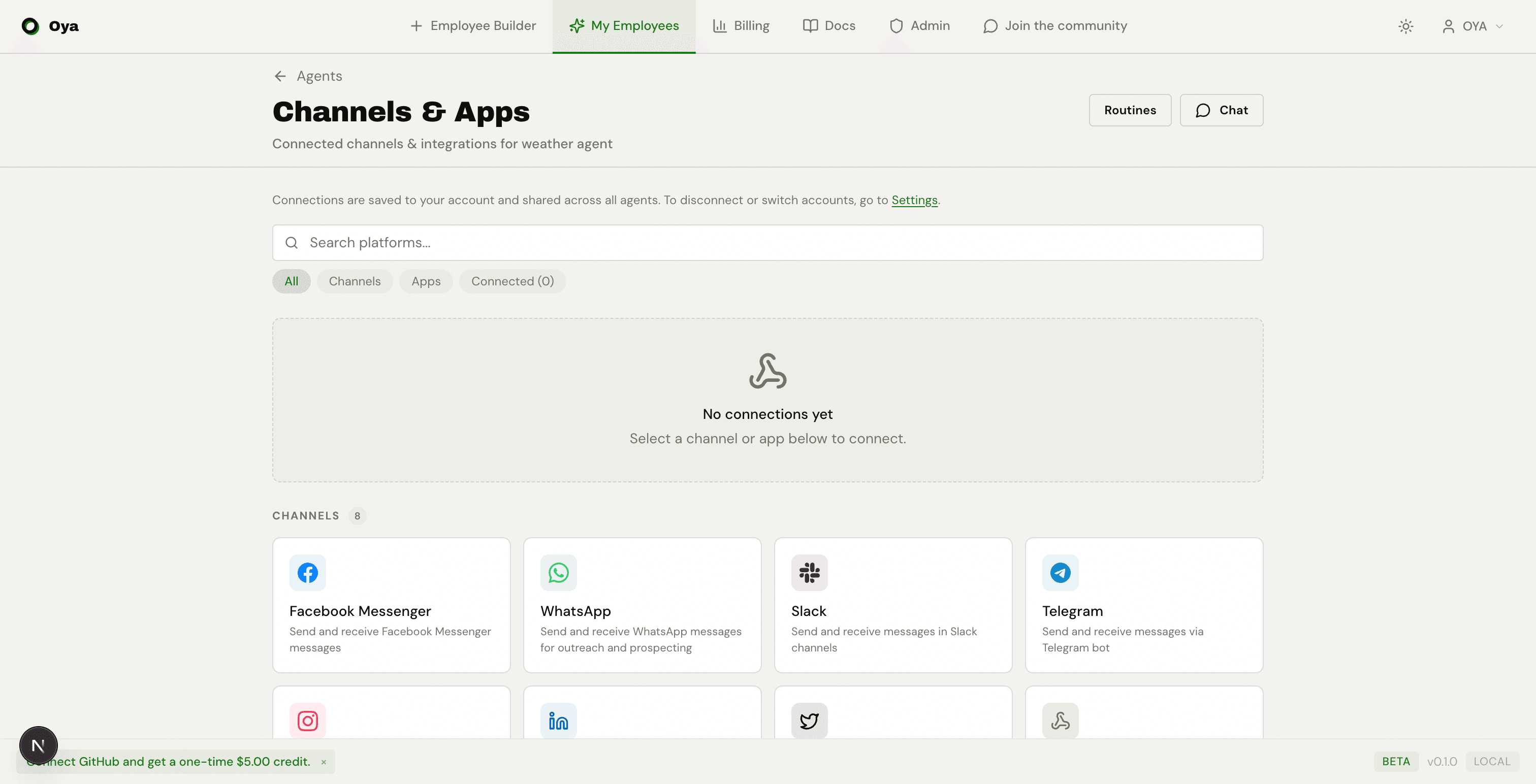
Google Calendar
Connect Google Calendar to allow your assistant to read, create, and manage calendar events.
Webhook
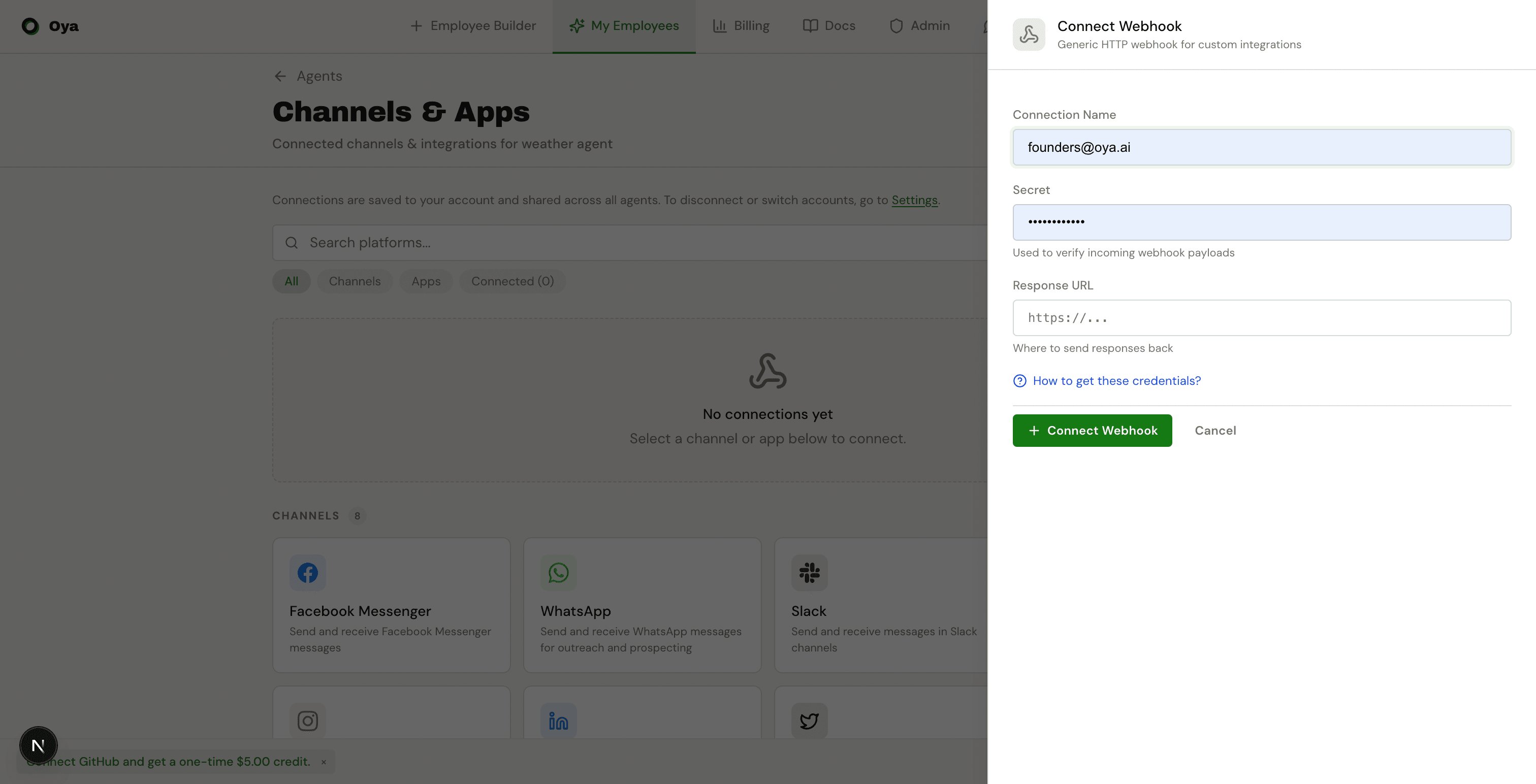
The Webhook platform gives you a raw HTTP endpoint. Send any JSON payload and your assistant will process it. This is ideal for integrations with systems that support outbound webhooks (e.g., Stripe, GitHub, Jira).
Routines
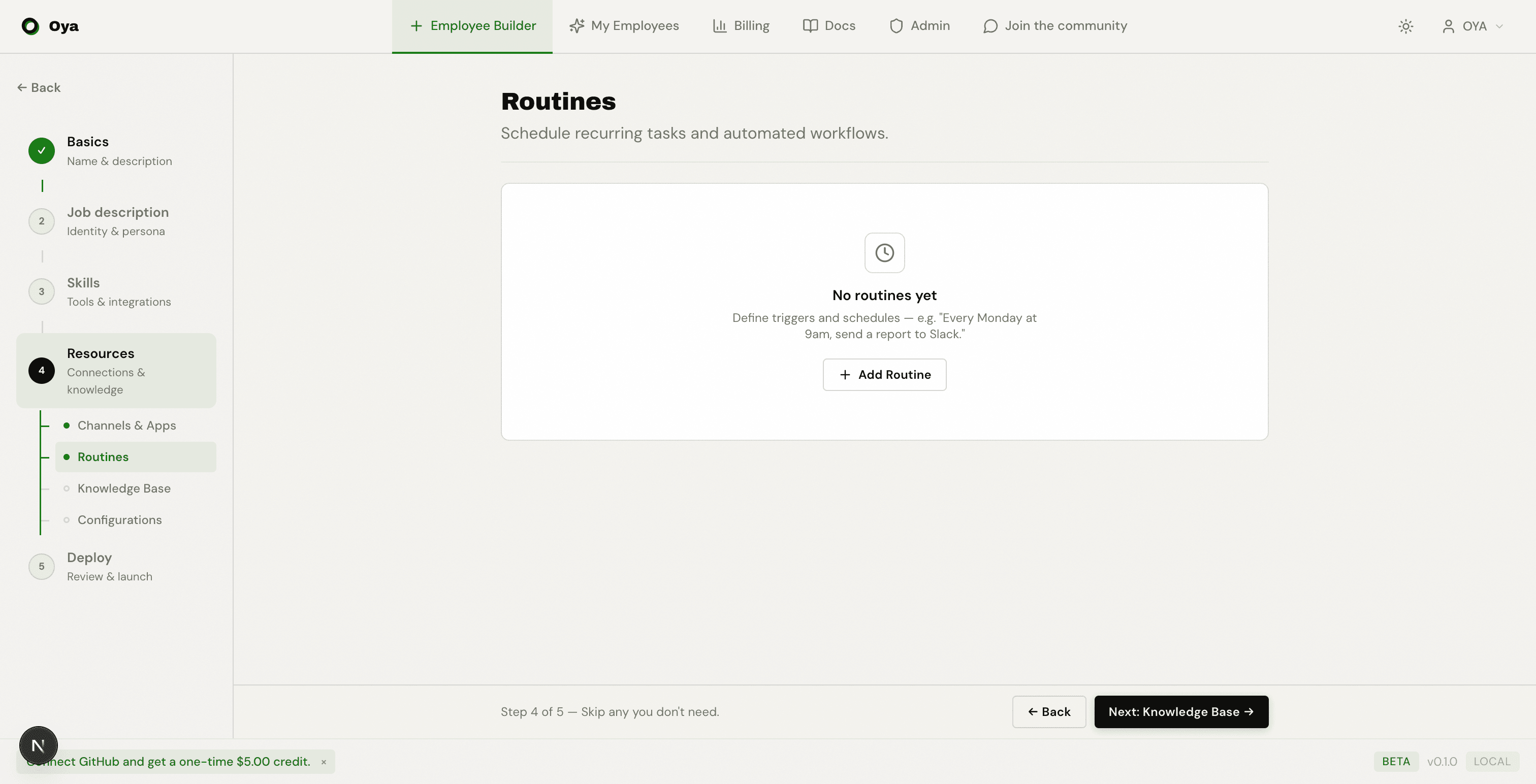
Routines let you schedule recurring tasks for your assistant. Describe the schedule in plain English (e.g., "every weekday at 9am", "first Monday of each month"), select an Output Channel to route results to a platform, and write a prompt that tells the assistant what to do on each run.
Step 5: Deploy
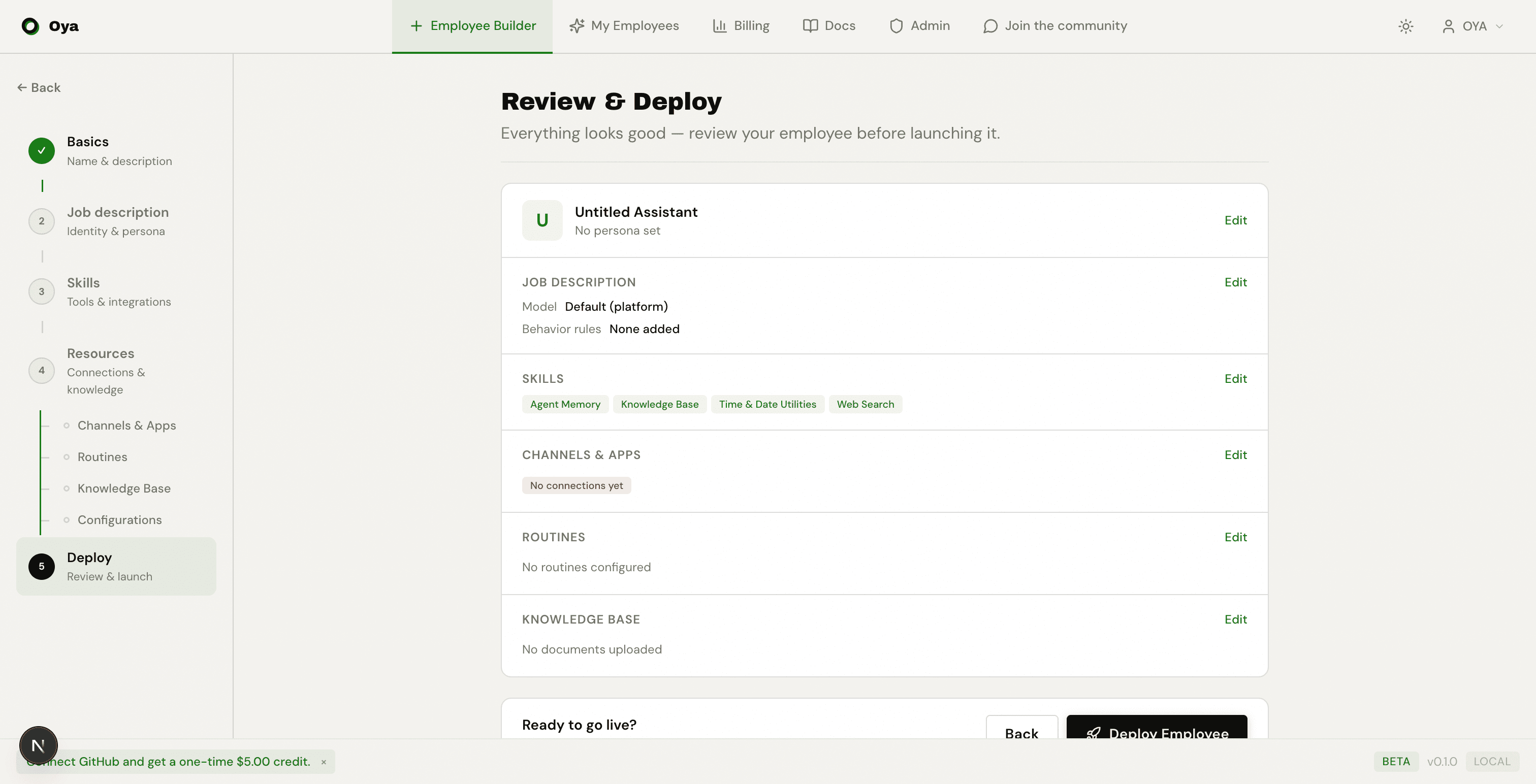
The final step presents a review checklist summarizing everything you have configured: name, persona, skills, credentials, platforms, and routines. Review each item and click Deploy to provision a sandbox and bring your assistant online.
After Deployment
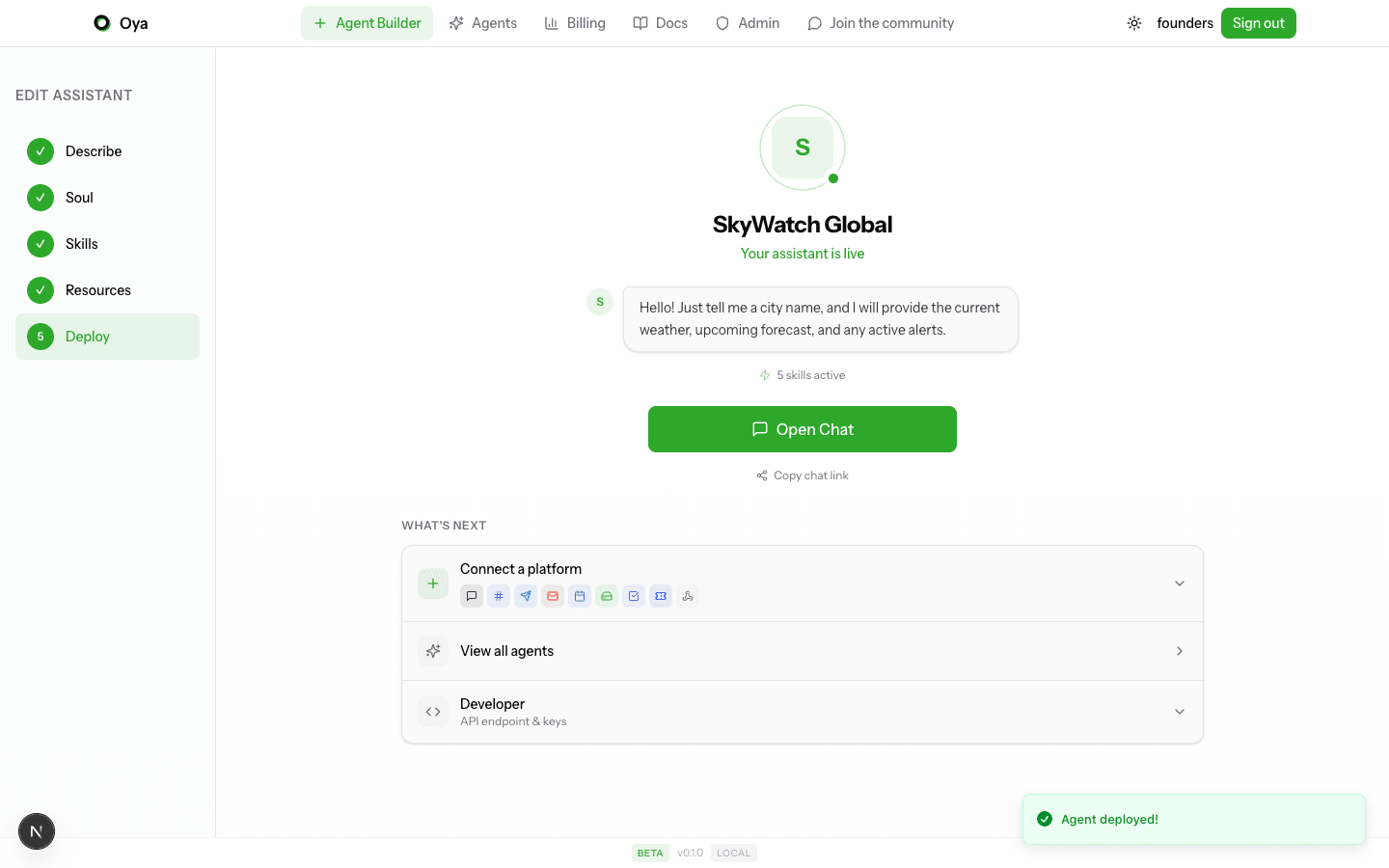
Once deployment completes, you land on the Your assistant is live page. From here you can:
- Open Chat: jump straight into a conversation with your new AI employee.
- Connect a Platform: add Slack, Discord, Telegram, or another gateway. You can do this at any time, not just during initial setup.
- API Access: every deployed assistant exposes an OpenAI-compatible API endpoint. Use any OpenAI SDK (Python, Node, etc.) by pointing it at your Oya base URL and using your API key.
Every deployed assistant is accessible through multiple integration options. The API is fully OpenAI-compatible, so any client or SDK that works with OpenAI will work with Oya by changing the base URL. Beyond the API, you can embed a chat widget directly in your website or build native mobile experiences.
cURL
The simplest way to test your assistant. Works from any terminal or scripting language.
curl -X POST https://oya.ai/api/v1/chat/completions \
  -H "Authorization: Bearer a2a_your_key_here" \
  -H "Content-Type: application/json" \
  -d '{"model":"gemini/gemini-2.5-flash","messages":[{"role":"user","content":"Hello"}]}'
Python
Use the official OpenAI Python SDK. Just change the base URL and API key.
# pip install openai
from openai import OpenAI

client = OpenAI(
    api_key="a2a_your_key_here",
    base_url="https://oya.ai/api/v1",
)

# First message
response = client.chat.completions.create(
    model="gemini/gemini-2.5-flash",
    messages=[{"role": "user", "content": "Hello"}],
)
print(response.choices[0].message.content)

# Continue the conversation using thread_id
thread_id = response.thread_id
response = client.chat.completions.create(
    model="gemini/gemini-2.5-flash",
    messages=[{"role": "user", "content": "Follow up"}],
    extra_body={"thread_id": thread_id},
)
print(response.choices[0].message.content)
JavaScript / TypeScript
Works with the official OpenAI Node SDK or any fetch-based client.
// npm install openai
// Run with: npx tsx script.ts
import OpenAI from "openai";

const client = new OpenAI({
  apiKey: "a2a_your_key_here",
  baseURL: "https://oya.ai/api/v1",
});

async function main() {
  // First message
  const response = await client.chat.completions.create({
    model: "gemini/gemini-2.5-flash",
    messages: [{ role: "user", content: "Hello" }],
  });
  console.log(response.choices[0].message.content);

  // Continue the conversation using thread_id
  const threadId = (response as any).thread_id;
  const followUp = await client.chat.completions.create({
    model: "gemini/gemini-2.5-flash",
    messages: [{ role: "user", content: "Follow up" }],
    // @ts-ignore (custom field)
    thread_id: threadId,
  });
  console.log(followUp.choices[0].message.content);
}
main();
Embeddable Chat Widget
Drop a chat widget into any website with a single script tag. The widget connects to your assistant via the same API and supports streaming responses out of the box.
<script
  src="https://oya.ai/widget.js"
  data-agent-id="your_agent_id"
  data-api-key="a2a_your_key_here"
  data-api-url="https://oya.ai/api"
  data-title="Chat with us"
  data-color="#2ea82b"
  data-welcome="Hi! How can I help you?"
></script>
Swift (iOS / macOS)
Use the MacPaw/OpenAI Swift package, which works out of the box since the API is OpenAI-compatible.
// Package.swift:
// .package(url: "https://github.com/MacPaw/OpenAI.git", from: "0.4.0")
// Run with: swift run
import Foundation
import OpenAI

@main
struct Main {
    static func main() async throws {
        let config = OpenAI.Configuration(
            token: "a2a_your_key_here",
            host: "oya.ai",
            scheme: "https"
        )
        let client = OpenAI(configuration: config)

        let query = ChatQuery(
            messages: [.user(.init(content: .string("Hello")))],
            model: "gemini/gemini-2.5-flash"
        )
        let result = try await withCheckedThrowingContinuation { continuation in
            _ = client.chats(query: query) { continuation.resume(with: $0) }
        }
        print(result.choices.first?.message.content ?? "")
    }
}
Android (Kotlin)
Use the aallam/openai-kotlin library for a native Kotlin experience.
// build.gradle.kts dependencies:
// implementation("com.aallam.openai:openai-client:4.0.1")
// implementation("io.ktor:ktor-client-cio:3.0.0")
import com.aallam.openai.api.chat.ChatCompletionRequest
import com.aallam.openai.api.chat.ChatMessage
import com.aallam.openai.api.chat.ChatRole
import com.aallam.openai.api.model.ModelId
import com.aallam.openai.client.OpenAI
import com.aallam.openai.client.OpenAIHost
import kotlinx.coroutines.runBlocking

fun main() = runBlocking {
    val openai = OpenAI(
        token = "a2a_your_key_here",
        host = OpenAIHost(baseUrl = "https://oya.ai/api/v1/")
    )
    val completion = openai.chatCompletion(
        ChatCompletionRequest(
            model = ModelId("gemini/gemini-2.5-flash"),
            messages = listOf(ChatMessage(role = ChatRole.User, content = "Hello"))
        )
    )
    println(completion.choices.first().message.messageContent)
}stream: true to receive server-sent events (SSE) for real-time responses.