API Keys
OpenAI-compatible API for your AI employees.
Overview
Every deployed agent gets an OpenAI-compatible API endpoint. This means you can use any SDK or HTTP client that supports the OpenAI chat completions format to interact with your AI employees programmatically. No custom integration required.
Creating an API Key
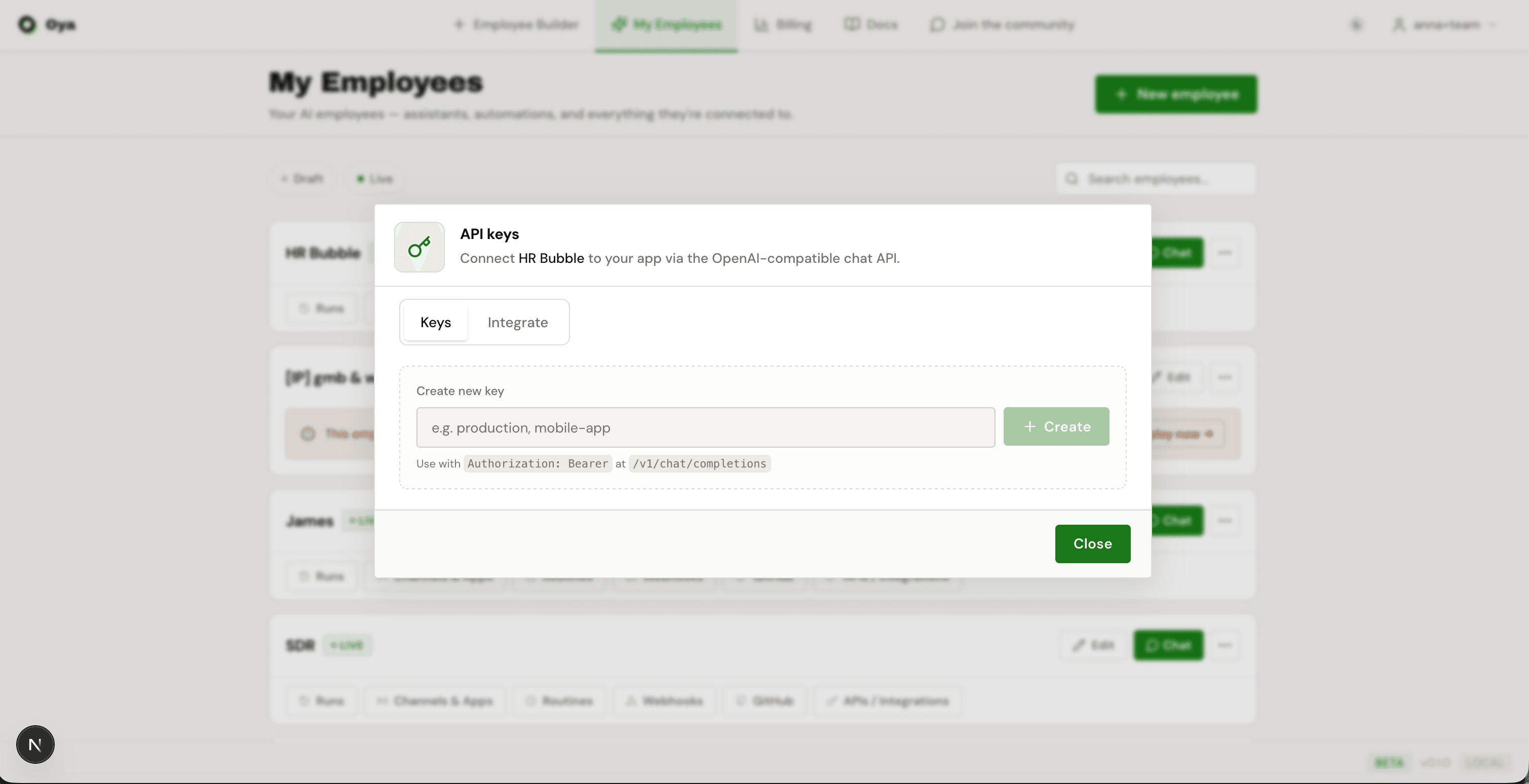
You can create an API key from the agent's post-deploy page or from the Agents list by clicking the API key button on any deployed agent card. Give it a name, click Create, and your key is ready.
Keys are hashed and stored securely. Oya cannot recover a lost key.
Endpoint
https://oya.ai/api/v1/chat/completionsCompatible with OpenAI's chat completions API format.
Usage Examples
cURL
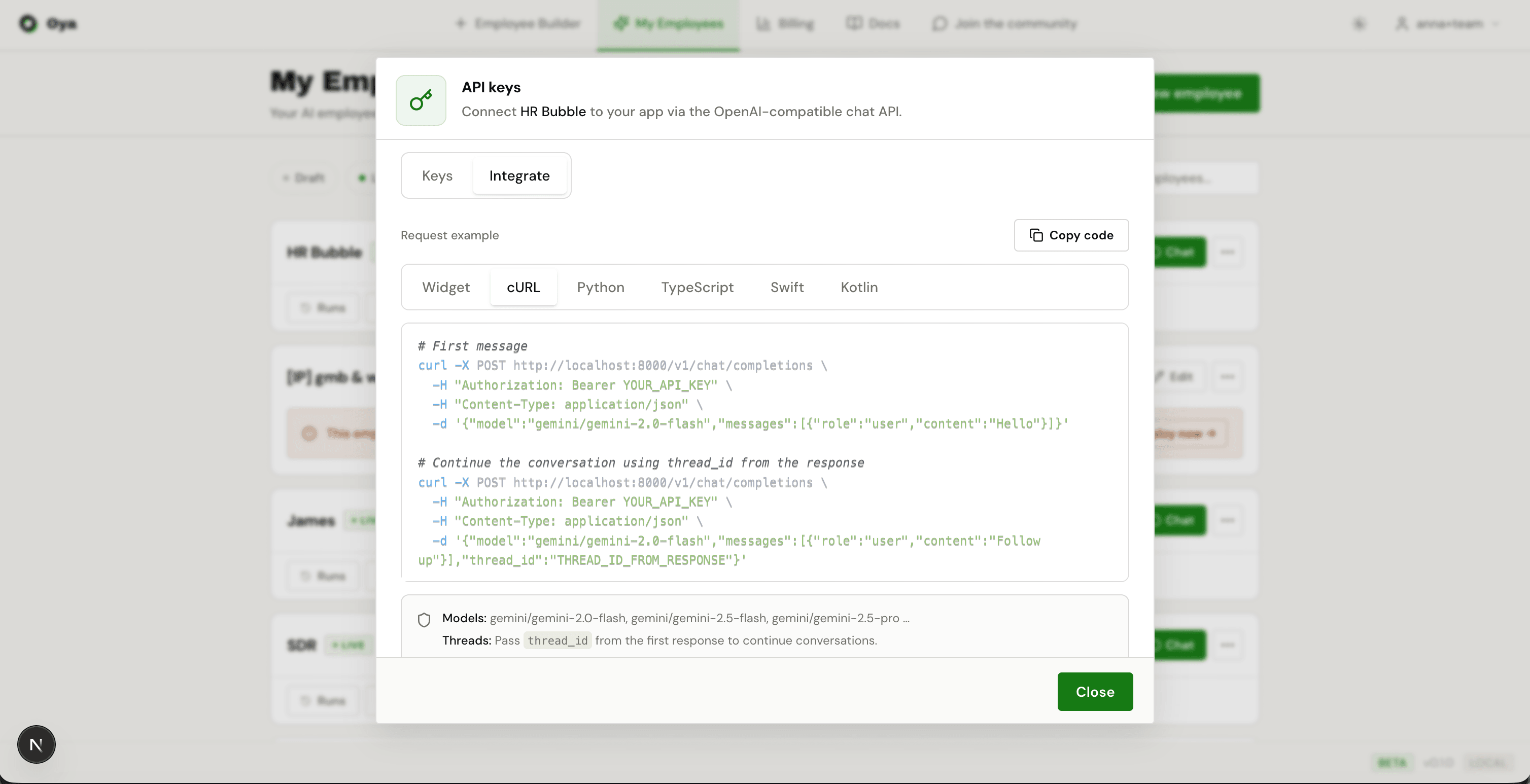
curl -X POST https://oya.ai/api/v1/chat/completions \
  -H "Authorization: Bearer a2a_your_key_here" \
  -H "Content-Type: application/json" \
  -d '{"model":"gemini/gemini-2.0-flash","messages":[{"role":"user","content":"Hello"}]}'

# Continue a conversation using thread_id from the first response:
curl -X POST https://oya.ai/api/v1/chat/completions \
  -H "Authorization: Bearer a2a_your_key_here" \
  -H "Content-Type: application/json" \
  -d '{"model":"gemini/gemini-2.0-flash","messages":[{"role":"user","content":"Follow up question"}],"thread_id":"thread_id_from_previous_response"}'
Python
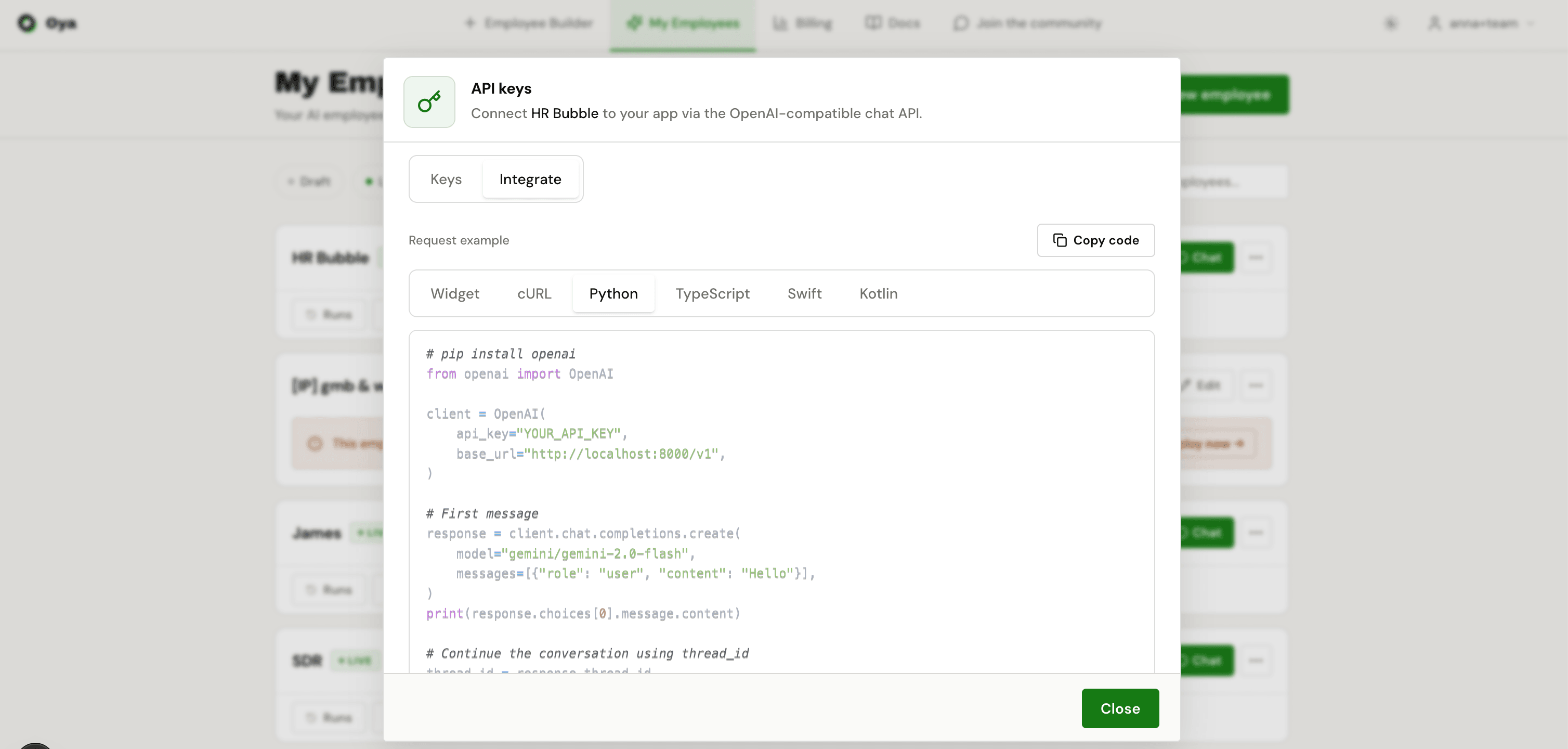
# pip install openai
from openai import OpenAI

client = OpenAI(
    api_key="a2a_your_key_here",
    base_url="https://oya.ai/api/v1",
)

# First message: starts a new thread
response = client.chat.completions.create(
    model="gemini/gemini-2.0-flash",
    messages=[{"role": "user", "content": "Hello"}],
)
print(response.choices[0].message.content)

# Continue the conversation using thread_id
thread_id = response.thread_id
response = client.chat.completions.create(
    model="gemini/gemini-2.0-flash",
    messages=[{"role": "user", "content": "Follow up question"}],
    extra_body={"thread_id": thread_id},
)
print(response.choices[0].message.content)
TypeScript
// npm install openai
// Run with: npx tsx script.ts
import OpenAI from "openai";

const client = new OpenAI({
  apiKey: "a2a_your_key_here",
  baseURL: "https://oya.ai/api/v1",
});

async function main() {
  // First message: starts a new thread
  const response = await client.chat.completions.create({
    model: "gemini/gemini-2.0-flash",
    messages: [{ role: "user", content: "Hello" }],
  });
  console.log(response.choices[0].message.content);

  // Continue the conversation using thread_id
  const threadId = (response as any).thread_id;
  const followUp = await client.chat.completions.create({
    model: "gemini/gemini-2.0-flash",
    messages: [{ role: "user", content: "Follow up question" }],
    // @ts-ignore: custom field
    thread_id: threadId,
  });
  console.log(followUp.choices[0].message.content);
}
main();Authentication
Pass your API key via either header format:
- Authorization: Bearer a2a_your_key_here
- X-API-Key: a2a_your_key_here
Keys are per-agent: each key is scoped to the single agent it was created for. You need separate keys for different agents.
Browser-Stored Key
The API Keys page includes a "Your API key (for this browser)" section that saves a key to your browser's localStorage. This is a convenience feature : it pre-fills code examples with your key and persists across page loads. Clear it anytime.
Key Management
- Last used tracking: Each key shows when it was last used for audit purposes.
- Multiple keys: Create separate keys for different environments (production, staging, mobile).
- Key rotation: Create a new key, update your integration, then delete the old one.
- Instant revocation: Deleted keys stop working immediately.
Rate Limits & Errors
- 429 Too Many Requests: rate limited
- 402 Payment Required: insufficient balance
- 401 Unauthorized: invalid or expired key