Routines
Schedule recurring tasks for your OAgents.
Overview
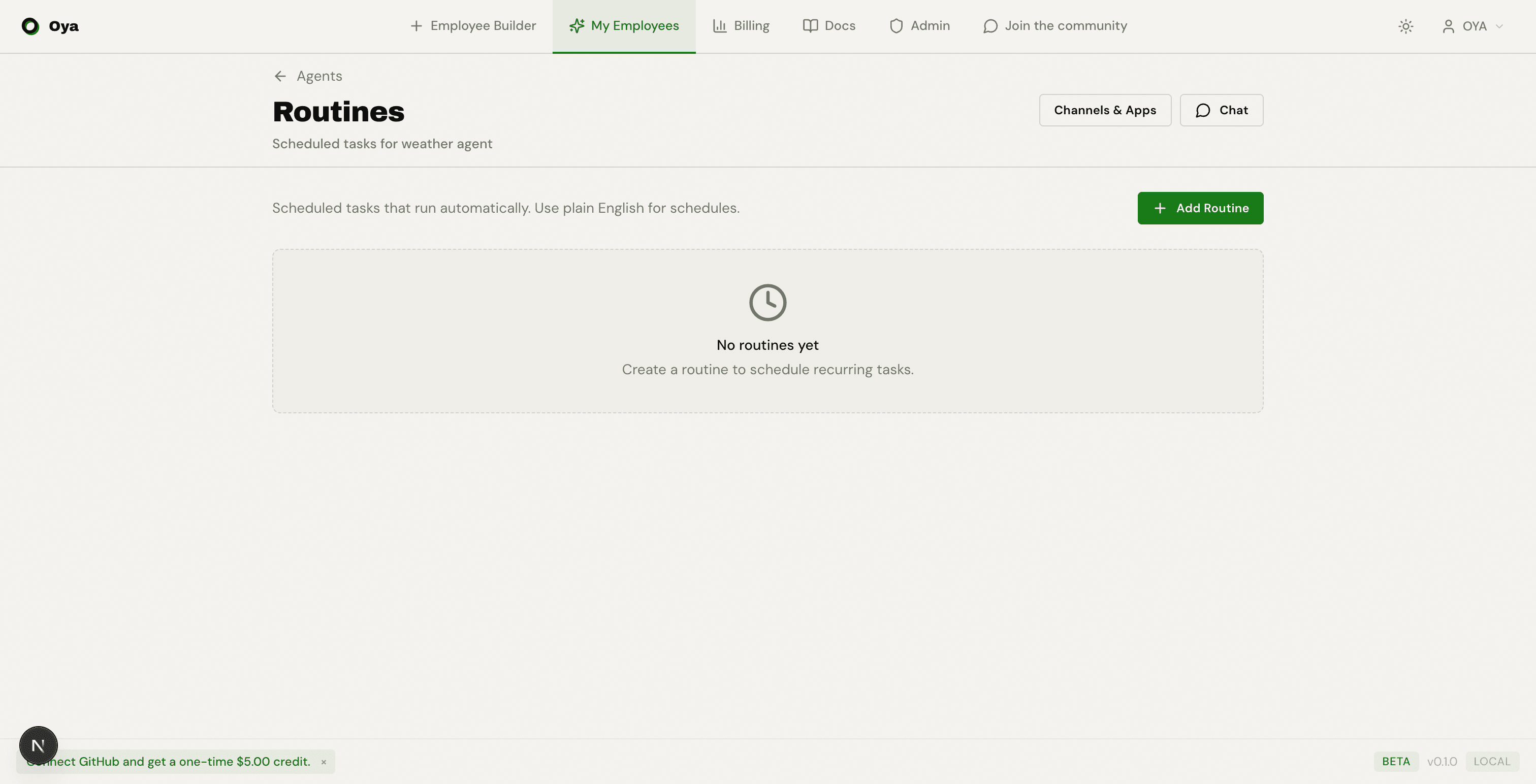
Routines are scheduled tasks that run automatically on a recurring basis. Each routine executes a prompt against your OAgent on a schedule and sends the output to a connected gateway (Slack, Discord, Telegram, or any other connected platform).
Creating a Routine
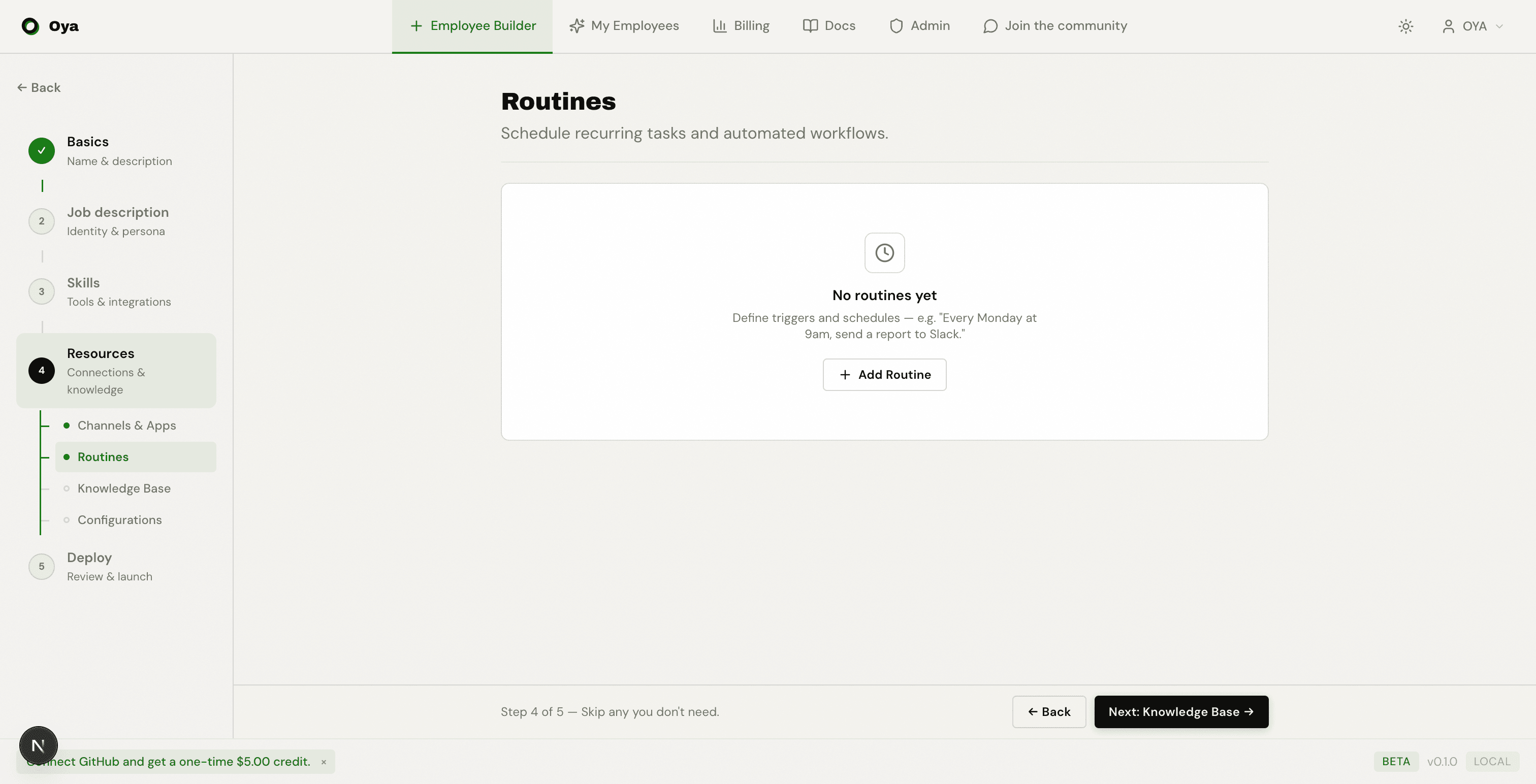
The routine creation form has four fields:
- Schedule: select from structured dropdown options (see below)
- Prompt: the message sent to the OAgent on each run
- Output Gateway: which connected platform to send the result to (required)
- Channel: the specific channel or chat within that platform (required, auto-populated)
The routine name is auto-generated from the first 40 characters of the prompt. An optional description field is also available.
Schedule Picker
Schedules are configured using structured dropdowns: no free-text cron entry needed. The picker generates cron expressions deterministically from your selections.
Available schedule types:
- Every N minutes: choose from 1, 2, 5, 10, 15, or 30 minute intervals
- Hourly: choose the minute past the hour (:00, :15, :30, :45)
- Daily: choose a specific hour and minute
- Weekdays: runs Monday through Friday at a specific time
- Weekly: choose a time and toggle individual days (Mon–Sun)
- Monthly: choose a day of the month (1–28), hour, and minute
The picker shows both a human-readable label (e.g., "Daily at 9:00 AM") and the generated cron expression (e.g., 0 9 * * *).
Channel Picker
When you select an output gateway, the form auto-fetches available channels from the platform API:
- Slack: lists channels the bot is a member of (via conversations.list)
- Discord: lists text channels in the connected server
- Telegram: lists known chats (discovered automatically as users message the bot)
Channels appear in a dropdown. For Telegram, if no chats have been discovered yet, the dropdown auto-polls until chats appear. For other platforms, a manual text input is available as a fallback.
Test Message
A send test button next to the channel picker verifies the connection works before allowing the routine to be created. The Create button stays disabled until the test passes.
Output Platforms
Any connected gateway can be used as a routine output destination:
- Slack: post to a specific channel
- Discord: post to a text channel
- Telegram: send to a specific chat
- Gmail: send as an email
- Google Calendar, Google Drive, ClickUp, Jira, LinkedIn, X, Webhook: any connected app
Prompt Examples
The prompt is the instruction sent to the OAgent on each routine run. Write it as if you're talking to the OAgent:
# Daily standup summary
Search the web for the latest AI news from today.
Summarize the top 3 stories in 2-3 sentences each.
Format as a bulleted list with links.

# Weekly report
Look up our key metrics using the REST API skill.
Compare this week vs last week.
Highlight any metrics that changed by more than 10%.

# Morning briefing
Check today's calendar events and summarize my schedule.
Include meeting times, attendees, and any preparation needed.Routine Cards
Each routine appears as an expandable card. The collapsed view shows the routine name, schedule label, and an active/paused badge.
Expanding a card reveals:
- Cron expression: the translated schedule in cron format
- Next run: when the routine will next execute
- Last run: when the routine last executed
- Output: the gateway name, platform, and channel
- Prompt: the full instruction text
Upcoming Runs
Active routines display the next 5 scheduled runs computed from the cron expression. These appear as timestamp tags below the routine details.
Previous Runs
The last 5 execution results are shown with color-coded status indicators:
- Done: completed successfully (green)
- Failed: execution error with error message shown (red)
- In Progress: currently running (amber)
Each previous run has a View thread link that opens the full conversation in the Chat page, so you can see exactly what the OAgent did during that run.
Managing Routines
Run Now
Click Run Now to manually trigger a routine immediately without waiting for the next scheduled run. This is useful for testing or when you need results right away.
Pause / Resume
Click Pause to stop a routine from running on schedule. The routine shows a "Paused" badge while inactive. Click Resume to reactivate it. The routine picks up from the next scheduled time after resuming.
Delete
Click Delete to permanently remove a routine. A confirmation dialog appears before deletion. This cannot be undone.
Monitoring
Routine health is visible in multiple places:
- Routine cards: upcoming and previous runs with status
- Health Monitoring: routine failures appear in the OAgent monitoring dashboard
- Run History: routine jobs appear in the OAgent's run history with entry_point "routine"
- Chat: each routine run creates a thread visible in the Chat sidebar