Agents
Your AI employees — assistants, automations, and everything they're connected to.
Overview
The Agents page is your command center for managing every AI employee you've created. From here you can monitor status, access chat, edit configurations, view the system prompt, inspect the agent brain, and navigate to runs, gateways, routines, and health dashboards — all from a single page.
Agent Status
Every agent has one of two statuses:
Draft
The agent has been created but not yet deployed. No sandbox is provisioned and the agent cannot receive messages via chat, API, or gateways. Draft agents only show the identity row actions (Prompt, Brain, Edit, Delete) — no navigation row.
Live
The agent is deployed and accessible via the chat interface, the OpenAI-compatible API, and any connected gateways. A sandbox is provisioned and skills are ready to execute. The green pulsing dot indicates the agent is actively running.
Agents List
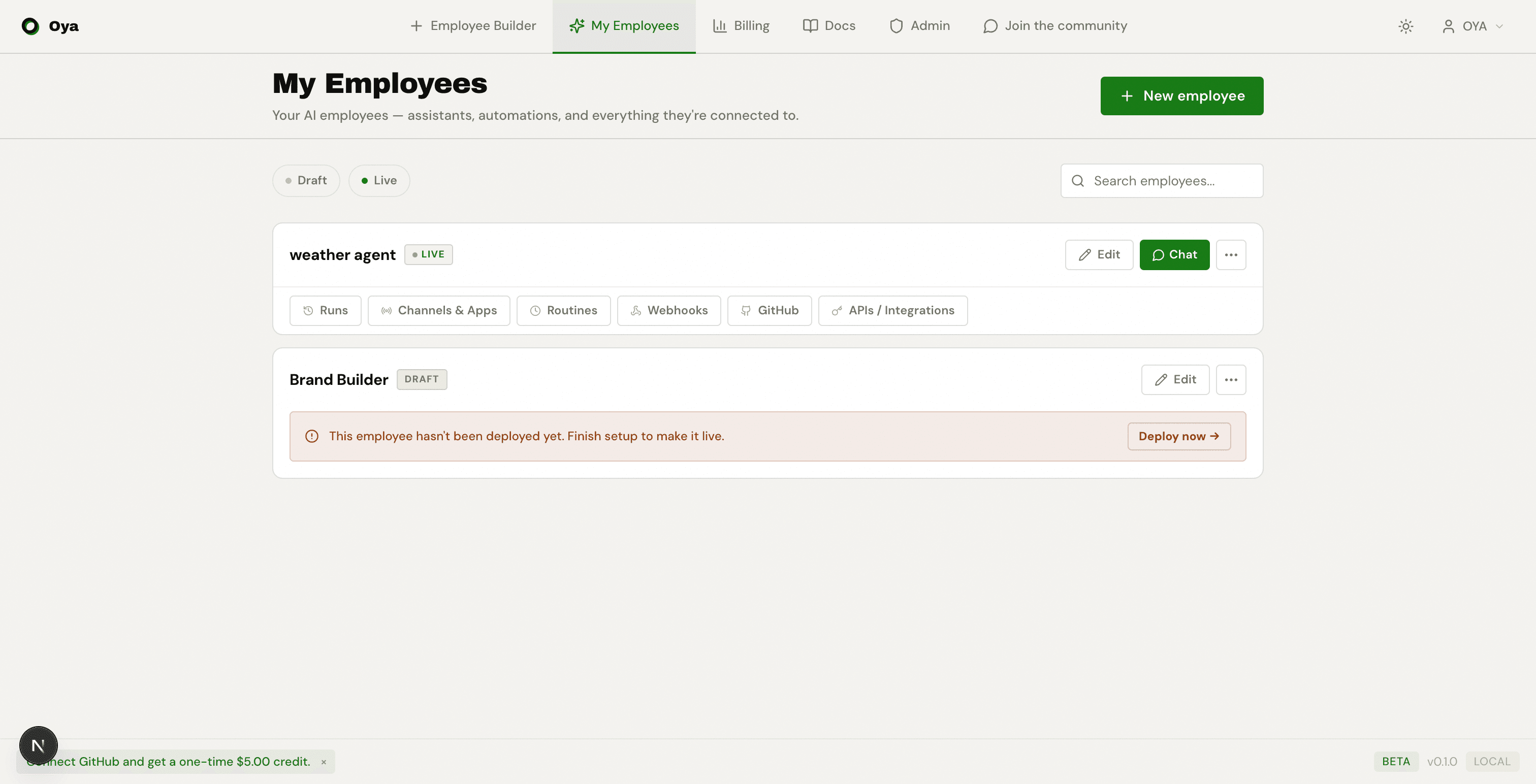
The /agents page is the central hub for every AI employee you have created. Each agent appears as a card showing its name, type, status, and quick-access navigation. Agents fall into two types:
- Assistants — Soul + skills agents created through the guided Agent Builder. They run on an LLM with tool-calling capabilities.
- Automations — Script-based agents imported from Python scripts. They execute code directly inside a sandbox.
Filtering
Use the filter bar at the top to narrow the list. The Draft and Live tabs filter agents by deployment status. Use the search field to find agents by name.
Agent Card
Each agent card has two sections: the identity row at the top and the navigation row at the bottom (only visible for live agents).
Identity Row
The top row shows the agent icon, name (click to rename inline), type label (Assistant or Automation), and status indicator. Live agents show a green pulsing dot. If a model is configured, its name appears in monospace text.
On the right side of the identity row:
- Chat — Open the chat interface to talk to this agent (live agents only).
- Prompt (document icon) — Open the system prompt editor to view or modify the full instruction set.
- Brain (brain icon) — View and manage the agent's persistent memory scratchpad.
- Edit (pencil icon) — Re-enter the Agent Builder to change soul, skills, or configuration.
- Delete (trash icon) — Permanently remove this agent and all associated data.
Navigation Row
Live agents show a row of navigation links below the identity row. These link to dedicated management pages for each feature:
- Runs — Execution history with output, timing, and status for each run.
- Channels & Apps — Connected platforms (Slack, Telegram, Gmail, WhatsApp, and more).
- Routines — Scheduled recurring tasks with cron schedules and output routing.
- Webhooks — HTTP webhooks that invoke the agent on external events.
- GitHub — Connect and manage GitHub repository integration.
- APIs / Integrations — Generate API keys, view code examples, and get the embeddable widget snippet.
Inline Rename
Click the agent name directly on the card to rename it inline. Type the new name and press Enter to save, or Escape to cancel. Clicking away also saves automatically. If the agent has a welcome message that includes the old name, it is updated to match.
System Prompt
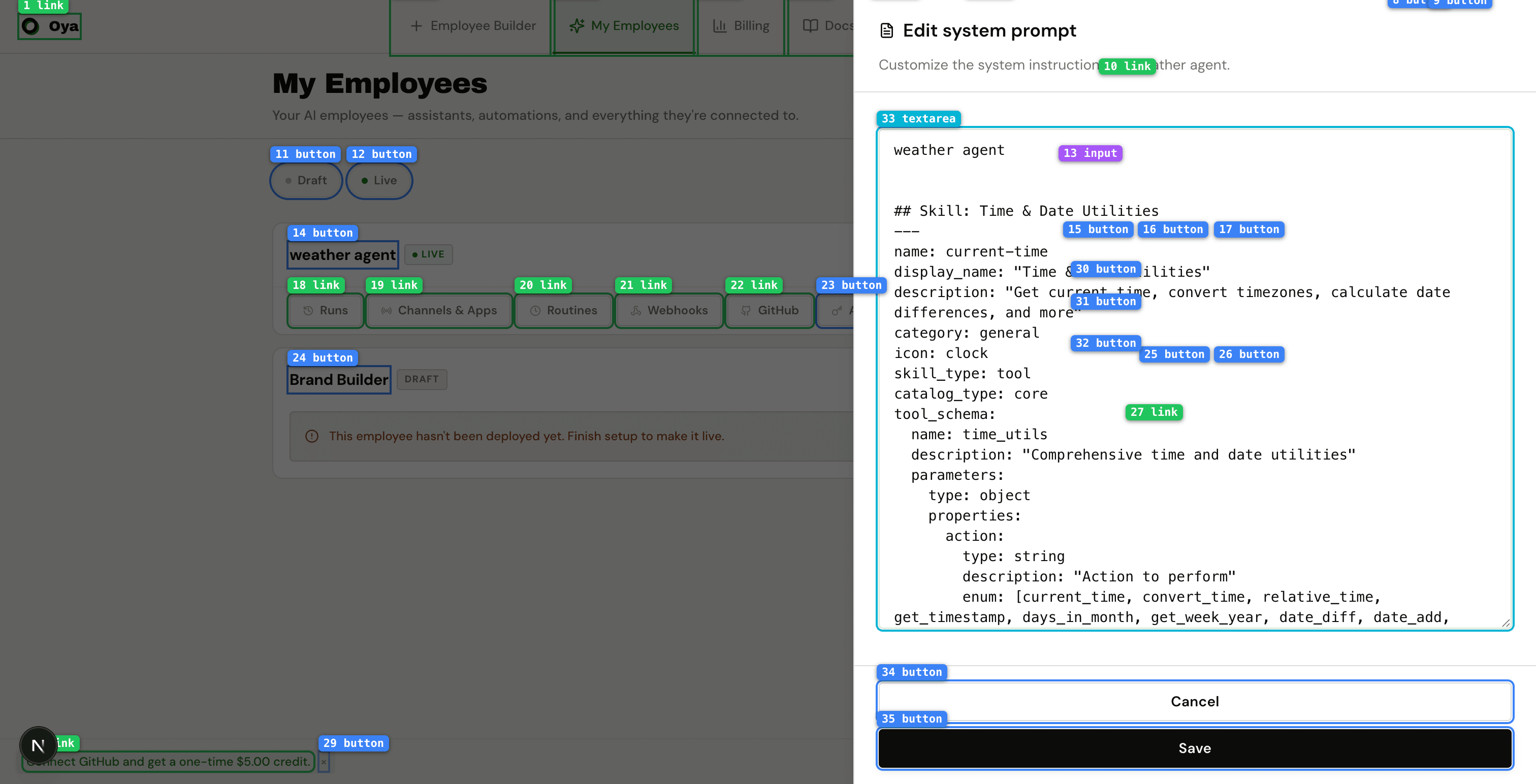
Clicking the document icon on any agent card opens the system prompt editor in a side panel. The prompt is a single text document that contains everything the LLM sees before your first message: the persona description, behavior rules, and auto-generated skill definitions (tool schemas).
The entire prompt is editable. You can refine the persona, add or remove rules, and adjust skill definitions directly. Click Save to apply changes immediately — there is no need to redeploy.
Agent Brain
Clicking the brain icon opens a side panel showing the agent's persistent memory scratchpad. The brain is a free-form text area that the agent manages automatically — it stores learned facts, user preferences, and context from previous conversations.
The brain panel is read-only by default. You can inspect what the agent has remembered and use the Clear / Reset button to wipe the scratchpad. After clearing, the agent will rebuild it from behavior rules on the next conversation.
Editing a Deployed Agent
Clicking the pencil icon on a live agent opens a confirmation dialog. Editing a deployed agent reverts it to in-progress status — you will need to approve and redeploy after making changes.
For assistants, clicking Edit opens the Agent Builder wizard directly. For automations, you are prompted to confirm since the agent will go offline during editing.
API Key
Clicking API in the navigation row opens a dialog to manage API keys scoped to this specific agent. From here you can:
- Create a new key — Give it a name (e.g. "production", "mobile-app") and click Create. The full key is shown once — copy it immediately.
- View existing keys — See all keys for this agent with masked previews. Delete any key instantly.
- Copy code examples — Switch between Widget, cURL, Python, TypeScript, Swift, and Kotlin tabs to get ready-to-use integration snippets with your key pre-filled.
API keys use the OpenAI-compatible endpoint at /v1/chat/completions. Pass the key via Authorization: Bearer or X-API-Key header.
Embeddable Widget
The Widget tab generates a <script> tag you can paste into any website. It renders a floating chat bubble that connects to your agent via the API. Customizable attributes include title, accent color, and welcome message.
Creating a New Agent
Click the + New employee button in the top-right corner to open the Employee Builder. This takes you to the entry page where you can choose between:
- Templates — Start from a pre-built template (LinkedIn Influencer, SDR, SEO Manager, and more) and customize it.
- Build your own employee — Start from scratch with the guided five-step builder (Basics, Job Description, Skills, Resources, Deploy).
- Start with a Script — Upload an existing Python script and deploy it as an AI employee with one click.