Chat
Talk to your AI employees.
Chat Interface
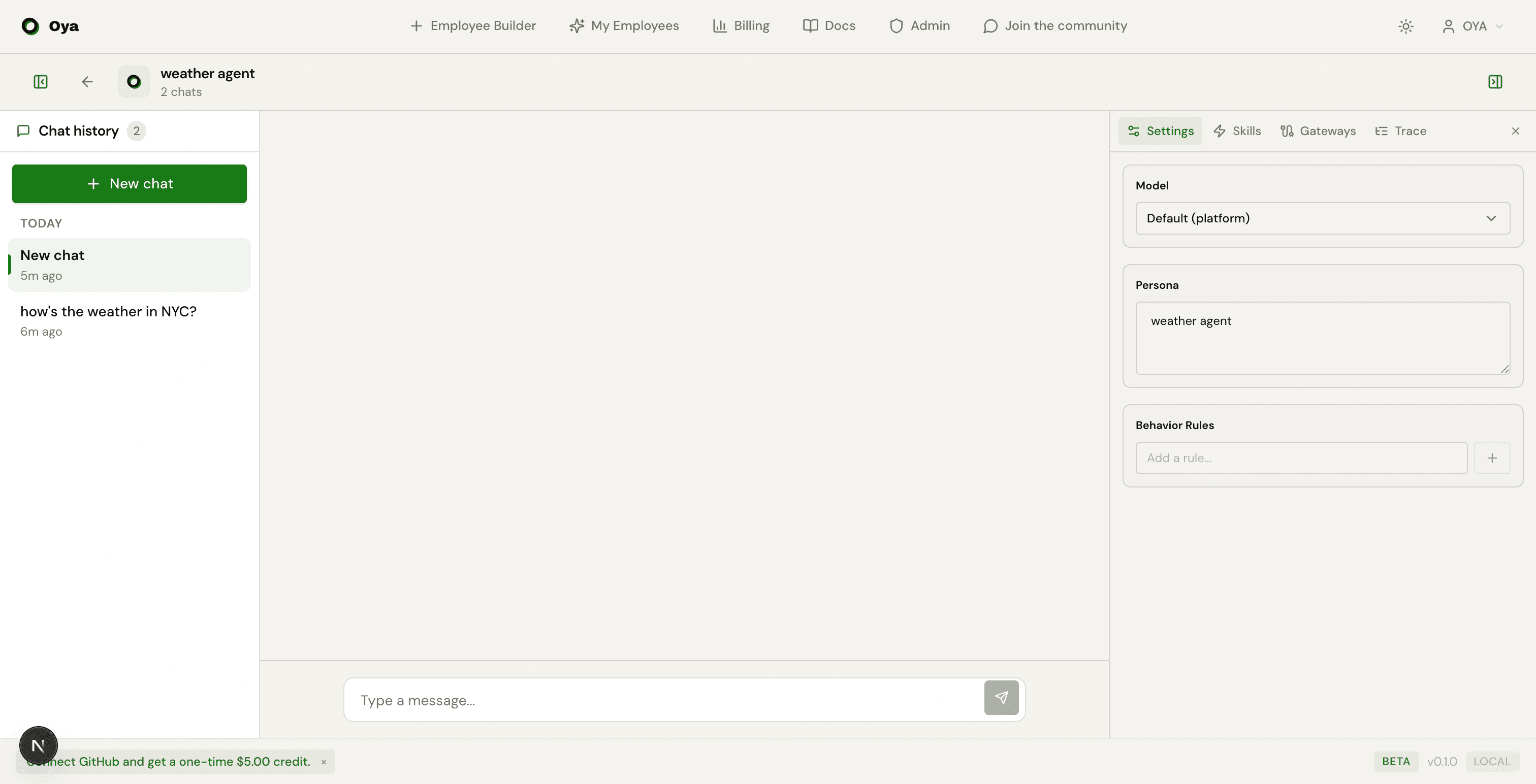
The chat page opens when you click Chat on any deployed agent. The header shows the agent name, and a Back link returns you to the agents list.
On the left, the thread sidebar lists all past conversations with this agent. Click + New Chat to start a fresh thread. Each thread maintains its own conversation history, so switching between threads picks up exactly where you left off. If an agent has a welcome message configured in its Soul, it appears as the first bubble in every new thread.
Thread Management
- Search — When you have more than 3 threads, a search box appears to filter by title.
- Delete — Hover over a thread and click the trash icon to delete it. If you delete the active thread, the app switches to the most recent remaining thread.
- Streaming indicator — Threads actively receiving a response show a spinning loader icon in the sidebar.
- Concurrent streams — You can send messages to multiple threads at once. Switching threads while one is streaming keeps the original thread processing in the background.
Streaming Responses
Responses stream in real-time via Server-Sent Events (SSE). As the agent generates text, it appears token by token in the chat window with a blinking cursor. While the agent is thinking, you see contextual status messages: "Thinking...", then "Working on it..." after 5 seconds, then "Still processing..." after 30 seconds. Press Shift+Enter to add newlines in your message before sending.
You can also stream responses programmatically using the OpenAI-compatible API:
# pip install openai
from openai import OpenAI

client = OpenAI(
    api_key="a2a_your_key_here",
    base_url="https://oya.ai/api/v1",
)

stream = client.chat.completions.create(
    model="gemini/gemini-2.0-flash",
    messages=[{"role": "user", "content": "Tell me about AI agents"}],
    stream=True,
)
for chunk in stream:
    delta = chunk.choices[0].delta.content
    if delta:
        print(delta, end="", flush=True)
Skill Execution Progress
When the agent runs skills, detailed step-by-step progress messages stream above the response in real time. Each step shows what the agent is doing:
- Planning… — the agent is deciding which skills to use.
- LLM responded (2.1s) — the language model returned a result.
- Running skill: canvas_design — a specific skill is executing.
- Starting sandbox… → Sandbox ready — the isolated execution environment is booting.
- Uploading 3 script(s)… → Installing 2 package(s)… → Running script… — sandbox execution stages.
- Script finished — scanning for output files… — post-execution file detection.
- canvas_design completed (12.3s) — skill finished with elapsed time.
- Analyzing results (step 2)… — the agent is processing results for the next LLM round.
Completed progress lines persist above the final assistant message as a log of the full execution. This replaces the generic "Thinking..." indicator for skill-based agents.
Rich Content Rendering
Messages support GitHub Flavored Markdown with several advanced features:
- Tables, strikethrough, and task lists via GFM.
- Math / LaTeX — inline ($...$) and block ($$...$$) equations rendered with KaTeX.
- Mermaid diagrams — code blocks with ```mermaid are rendered as interactive flowcharts.
- Collapsible code blocks — Python and Diff blocks are collapsed by default, expandable on click.
- Syntax-highlighted code — all major languages with copy button.
- HTML live preview — code blocks with ```html show a Preview/Source toggle with a sandboxed iframe and "Open in new tab" button.
Script Terminal Log
For automation agents (script-based), a terminal-like log appears during execution showing script status with indicators ($ starting, ✓ done, ✗ failed) and elapsed time.
Run Tree
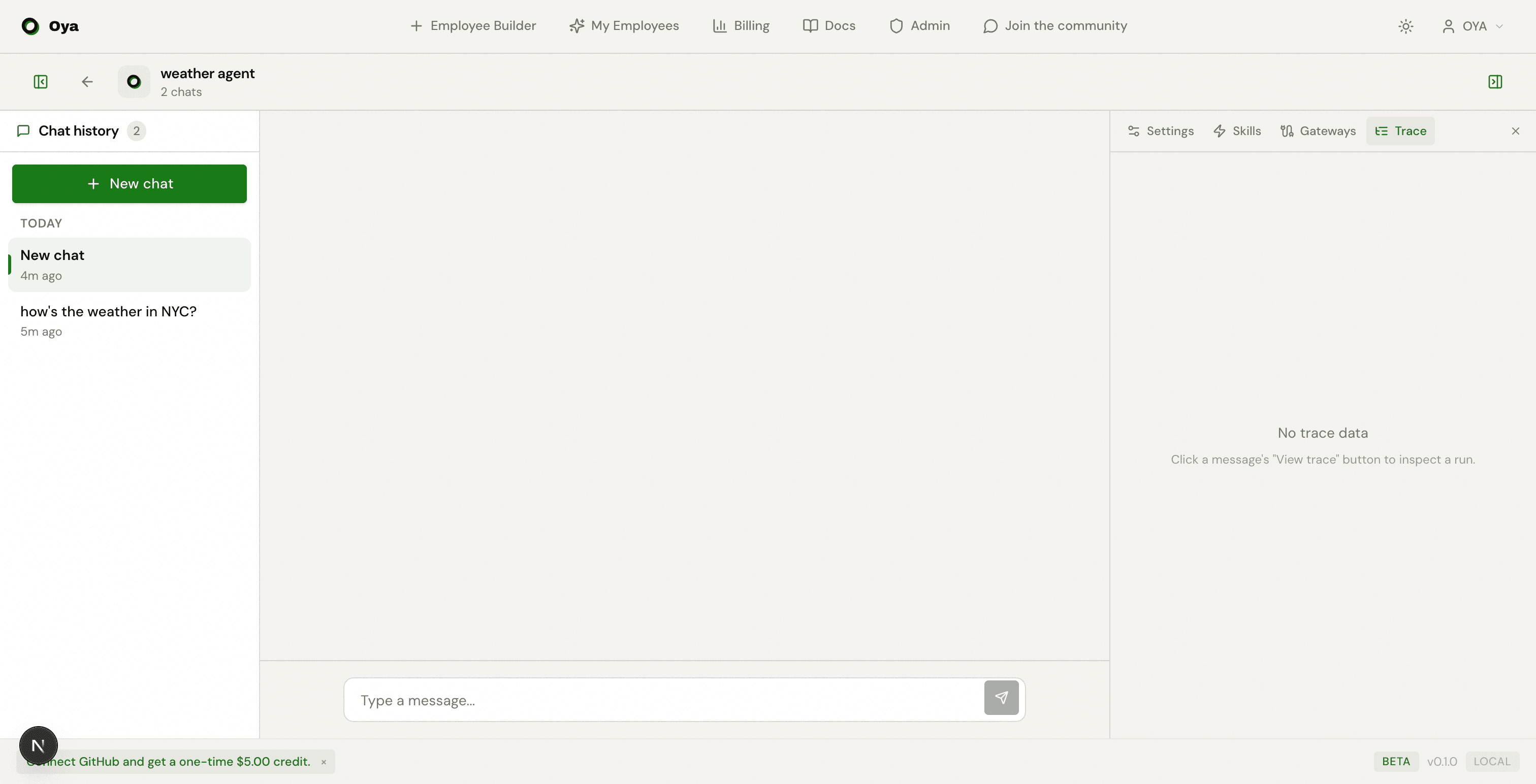
Each assistant message has a View trace button that opens the Run Tree panel showing the full execution trace for that turn. It breaks down every step the agent took to produce the response:
- LLM calls — model name, input/output token counts, cost in dollars, and per-step duration.
- Tool calls — skill name, input/output preview (expandable), and duration.
- Waterfall timeline — a visual bar showing the timing of all steps.
- Summary badges — total tokens, total cost, model count, and error count at the top.
- Error highlighting — failed steps are shown in red with error details.
Debugging Gateway Messages
Every message your agent processes — whether it arrives from Slack, Discord, Telegram, or the web chat — gets a trace ID attached to the assistant response. This trace ID links to the full Run Tree for that turn, including LLM calls, tool executions, token counts, cost, and duration.
Trace data is never sent back to the platform. Slack, Discord, and Telegram users only see the agent's text response. The trace ID is stored internally on the message record for your debugging use only.
To debug a gateway conversation:
- Open the agent's Chat page in Oya.
- Find the gateway thread in the sidebar — threads are named by platform and channel (e.g., "Gateway: telegram 123456").
- Click the thread to load the full conversation history.
- Each assistant message shows the Run Tree icon when a trace is available. Click it to inspect the execution trace.
Memory
If the Agent Memory skill is enabled on your agent, the agent can remember context across threads. When the agent stores a memory, it persists beyond the current conversation and is available in every future thread with that agent.
Memory is per-agent, not per-thread. This means any fact the agent remembers is shared across all threads for that agent, regardless of which thread it was learned in.
Agent Brain
The Agent Brain is a persistent markdown scratchpad the agent maintains across all conversations. Unlike discrete memory facts, the brain is a freeform document where the agent organizes knowledge, tracks patterns, and stores context. Access the brain viewer by clicking the Brain icon on any agent card.
Math & LaTeX
Chat responses support LaTeX math rendering via KaTeX. The agent can include mathematical expressions in its responses and they render as properly formatted equations.
- Inline math — Wrap expressions in single dollar signs: $E = mc^2$
- Block math — Wrap expressions in double dollar signs for centered display: $$\int_0^\infty e^{-x} dx = 1$$
Generated Files & Previews
When an agent generates files (via sandbox scripts, Text to Speech, or other skills), they appear as rich inline previews in the chat. Download links are automatically appended to the response if the LLM doesn't include them.
Supported Preview Types
- Images (PNG, JPG, GIF, WebP, SVG) — Inline preview with Expand (fullscreen dialog) and Open (new tab) buttons.
- HTML files — Sandboxed iframe preview with the rendered page. Expand to fullscreen for a full-page view.
- PDF files — Embedded PDF viewer inline in the chat.
- Audio (MP3, WAV, OGG) — Native audio player with playback controls.
- Other files (CSV, JSON, TXT, XML, etc.) — Download link with file type icon.
All generated files are served via signed URLs with a 7-day TTL. Supported file formats for auto-detection include PNG, JPG, JPEG, GIF, WebP, SVG, BMP, MP3, WAV, OGG, MP4, HTML, PDF, JSON, TXT, XML, CSV, and more.
Concurrent Streaming
Oya supports multi-thread streaming. You can have multiple threads open and switch between them while responses are still streaming — switching does not interrupt or cancel the stream. Each thread maintains its own independent SSE connection.
Troubleshooting
Common issues and how to resolve them:
- Agent doesn't respond — Check that the agent is deployed (not draft). Verify your billing balance has sufficient funds.
- Agent gives wrong answers — Review behavior rules in the builder. Confirm the correct skills are enabled. Open the system prompt to check for conflicting instructions.
- Agent is slow — Open the Run Tree to identify the bottleneck. Slow responses are usually caused by tool calls (web search, HTTP requests). Consider simplifying behavior rules to reduce the number of LLM rounds.
- Agent forgets context — Enable the Agent Memory skill in the builder. Add memory-related behavior rules such as "Remember the user's preferences for future conversations."