Monitoring & Traces
See how every OAgent is performing at a glance, replay any run step-by-step as an execution graph, and turn a red error node into a one-click fix.
Overview
Oya gives you three layers of visibility into what your OAgents are doing. The Monitoring view on the OAgents page is the fleet-wide health check: one glance tells you who is busy, who is failing, and how fast everything runs. The trace viewer zooms all the way into a single run and lays out every LLM round and skill call as an interactive graph you can click through. And the execution log in chat streams each step live as it happens, then tucks itself away when the run is done.
The Monitoring View
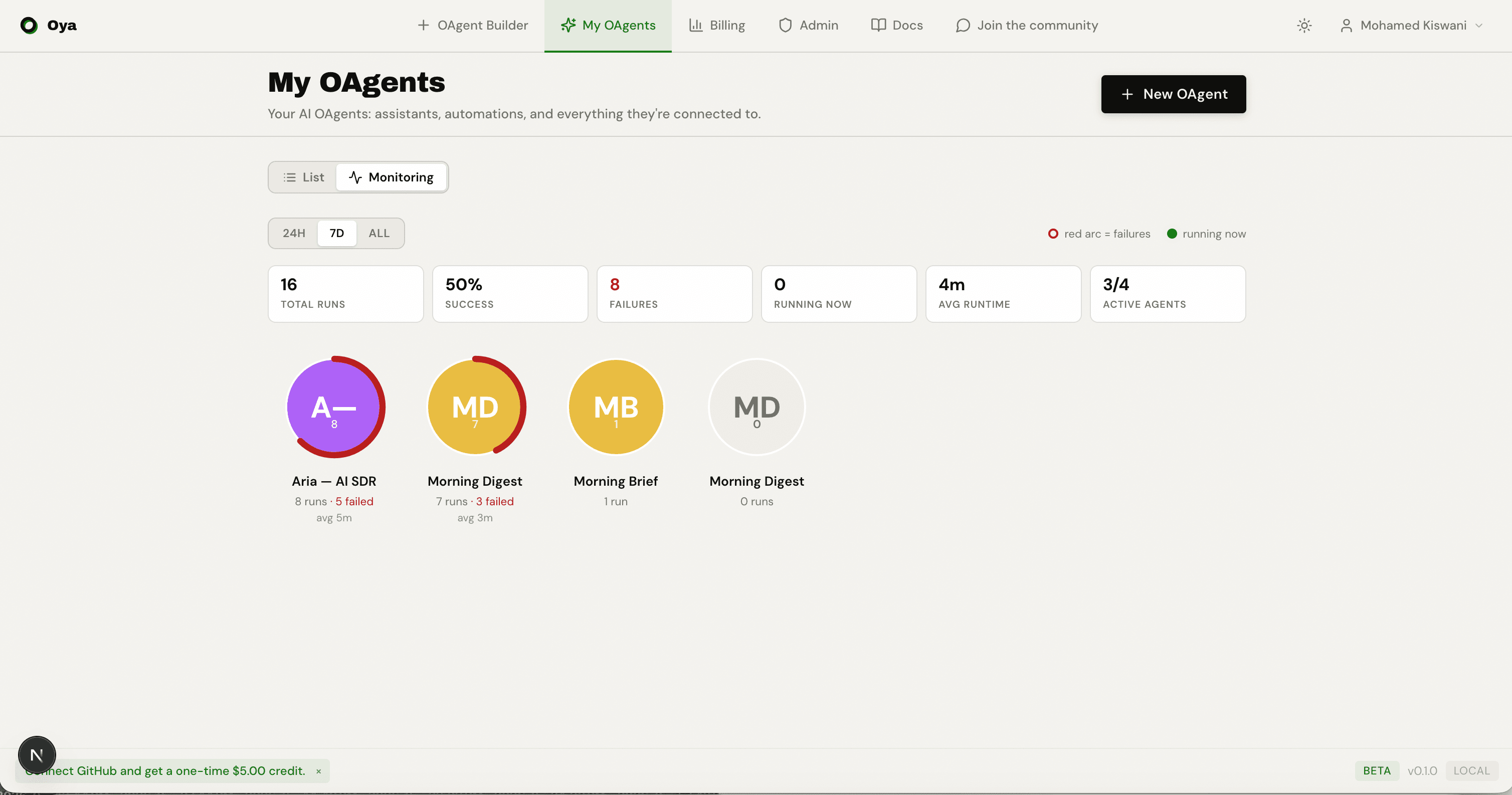
On the /agents page, switch from List to Monitoring using the toggle at the top. Instead of a row per OAgent, you get a field of bubbles: one per OAgent, sized and colored so the whole fleet reads in a single sweep. Use the 24h, 7d, and All window buttons to change the time range every bubble reflects.
What a bubble encodes
Every OAgent renders at the same size, so the visual differences all carry meaning:
- Color and initials: the OAgent's identity color and its initials, so you can find a specific one at a glance.
- Run count: the total number of runs in the selected window, shown under the initials. Bubbles are sorted by run volume, busiest first.
- Failure arc: a red arc around the perimeter, its length proportional to the failure rate (failed runs / total runs). A full red ring means everything is failing; no arc means a clean window.
- Running-now pulse: an expanding halo that pulses while the OAgent has one or more runs executing at that moment.
- Idle state: OAgents with zero runs in the window render muted and gray, so an inactive fleet is obvious.
- Average runtime: the mean wall-clock duration of finished runs, shown in the label beneath the bubble.
Hover any bubble for a tooltip with the exact numbers (runs, failures, success rate, running-now count, average runtime, and last-active time). Click a bubble to jump straight to that OAgent's Run History.
The fleet metrics bar
Above the bubbles, a six-tile bar rolls the whole fleet up into one line for the selected window:
- Total runs: every run across all OAgents in the window.
- Success: the fleet-wide success rate as a percentage.
- Failures: total failed runs, highlighted red when non-zero.
- Running now: how many runs are executing this instant, highlighted when active.
- Avg runtime: the run-weighted average wall-clock duration across the fleet.
- Active agents: how many OAgents actually ran, out of your total (e.g. 4/12).
TOOL_ERROR banner because a credential was missing. Both are counted, so the Failures stat reflects what actually went wrong, not just what crashed.The Trace Viewer
The trace viewer is an interactive DAG (directed graph) of a single run. It reconstructs what happened, in order: the sequence of LLM rounds forms a vertical spine, and every skill or tool call branches off the round that triggered it. It is the fastest way to answer “what did the OAgent actually do, and where did it go wrong?”
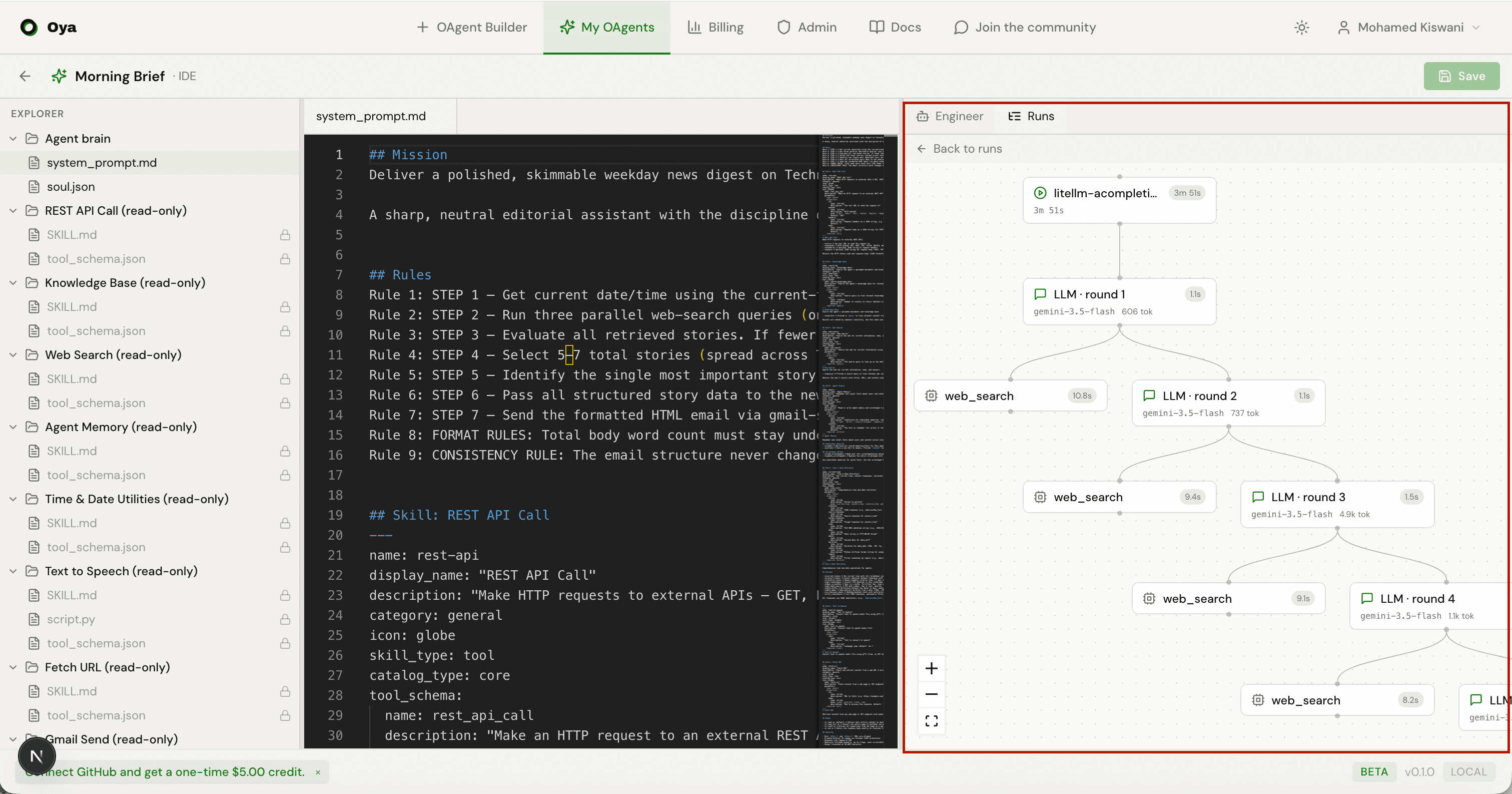
How to open a trace
- From Run History: open an OAgent's runs page and select a run to see its full-screen execution graph.
- From chat: after an OAgent replies, a "View trace" button appears beneath the message. Click it to open the same interactive graph for that turn.
The node inspector
Click any node to open the inspector panel. Each node kind carries different detail:
- Root: the run itself, with total latency.
- LLM rounds: the model used, token counts (input / output), and cost per round. Multiple rounds are numbered so you can follow the reasoning loop.
- Skill / tool calls: the input arguments the OAgent passed and the output it got back, rendered as readable transcripts rather than raw JSON.
The inspector surfaces per-step latency, model, token usage, and dollar cost. Failed steps are drawn in red with a short reason on the node, and the edge leading into them turns red too, so a failure path is visible without opening anything.
The “Fix it” Button
When a step fails, its node shows a Fix it with Engineer button. Clicking it packages up the failed step and its error reason into a diagnosis request and hands it to Oya Engineer, which opens in the Agent IDE and starts working on the root cause automatically. You go from spotting a red node to a fix in progress in one click.
The Live Execution Log
While an OAgent is working in chat, a terminal-style execution log streams its steps live: thinking, skill calls, sub-step progress, and script output all scroll past in real time. The active step spins, long-running scripts show an elapsed timer, and each finished step is marked with a check or, on failure, a red cross.
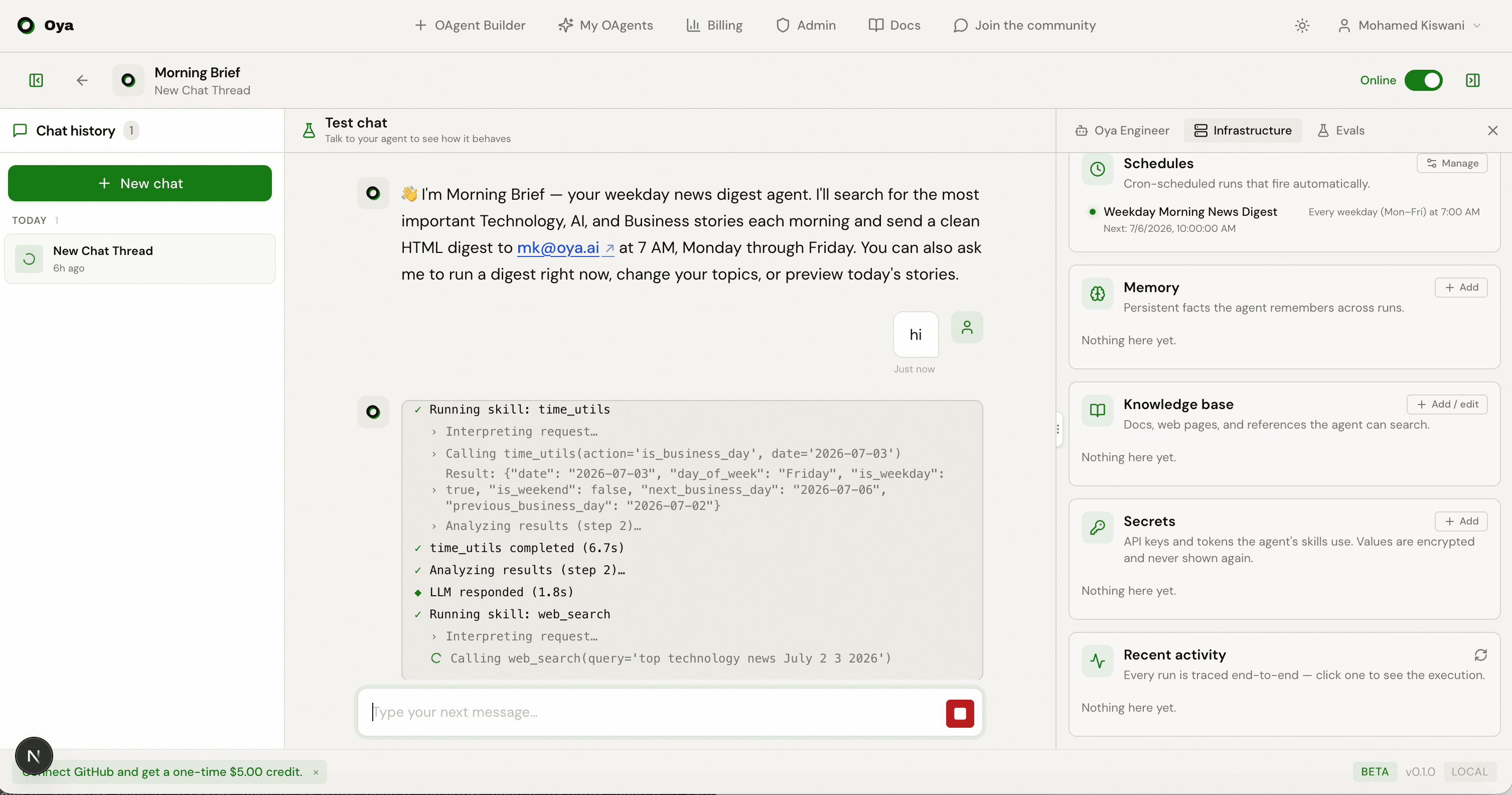
When the run finishes, the log doesn't vanish. It collapses into a compact Execution log · N steps header above the reply (or Execution failed if something went wrong). Click it to reopen the full step-by-step terminal for that turn whenever you want to review what happened.
Related
Keep exploring how Oya surfaces what your OAgents do:
- Run History: every execution with output, timing, and status, and the entry point into each run's trace.
- Agent IDE: where Oya Engineer lands when you hand it a failure to fix.
See Run History and Agent IDE for the full picture.